This guide explains how to search, view and download reservation information from your Bookit console, including filtering reservations by date, booking status, operator and other criteria.
The Reservation Search feature allows you to review bookings, locate specific reservations and export detailed booking information to a CSV file for reporting or record-keeping.
Searching for Reservations
1. Log in to your Bookit console.
2. Select Reservations (calendar icon) at the top of the page, or click Reservations from the dashboard.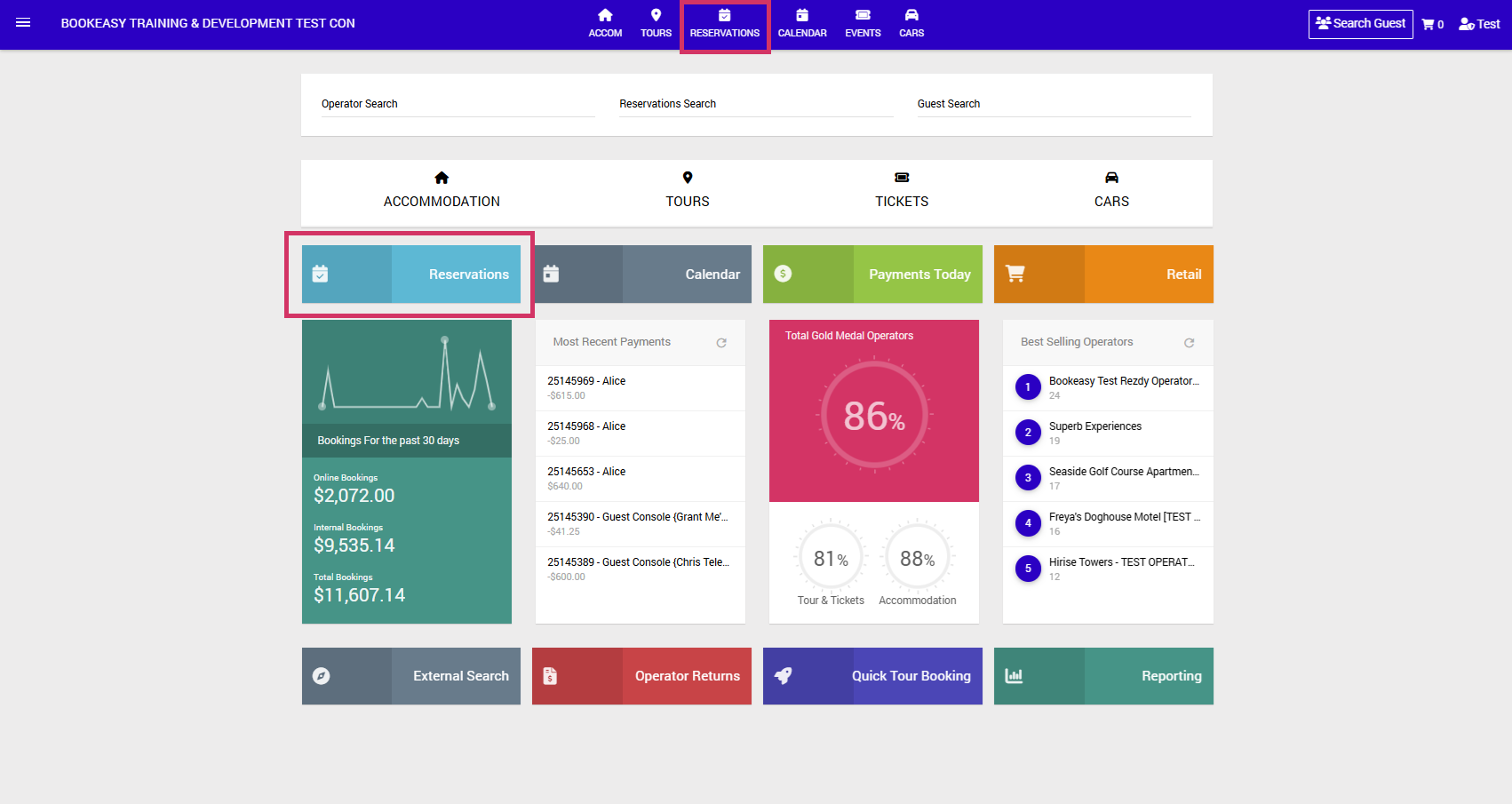
3. Select the appropriate Search Type depending on the reservations you want to view:
- All Types
- Booking Date
- Arrival Date
- Departure Date
- Outstanding Within 7 Days
- Outstanding Within 14 Days
- Outstanding Within 21 Days
- All Outstanding
- Closed Future Reservations
- Cancelled Future Bookings
- Stay Date
- Outstanding Within 30 Days
4. Enter your required From and To dates.
5. If required, refine your search using the additional filters:
- Operators: Select a specific operator or leave as All Operators.
- Status: Filter by booking status.
- Booked By Location: Filter reservations by the location where the booking was made.
- Campaigns: Filter by campaign, if applicable.
- Packages: Filter by package, if applicable.
- Promotions: Filter by promotion, if applicable.
- Follow-up Flags: Filter reservations using any applicable follow-up flags.
6. Click Search to display reservations matching your selected criteria.
Advanced Search Options
For more specific searches, select Advanced to access additional filters:
- Country of Origin: Filter reservations by the customer's country of origin.
- Lead Time (Days): Filter bookings based on the number of days between the booking date and travel date.
- Number of Pax: Filter by the number of passengers or guests.
- Type of Bookings: Filter by booking type.
Once you have selected your required filters, click Search to display the results.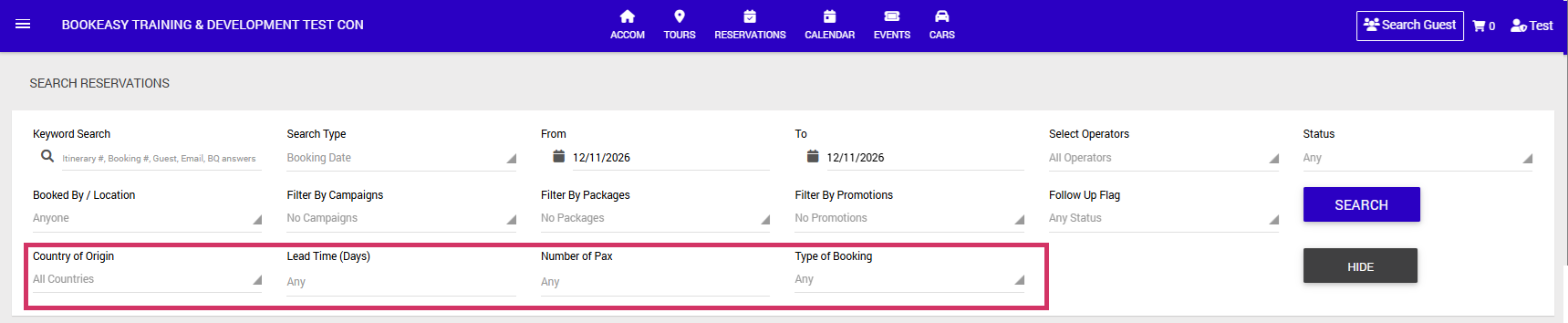
Viewing Reservation Information
Once you have completed your search, the results will display an overview of reservations matching your selected filters.
You can further manage the results using the available options:
- Search Bar: Use the search bar above the results to quickly locate a particular reservation within the displayed results.
- Number of Results: Click the dropdown displaying 10 to change how many reservations appear on each page. You can select 10, 25, 50, 100, 200 or All.
These options make it easier to review your reservations without needing to adjust your original search filters.
Downloading Reservation Information
You can export your reservation search results to a CSV file, which can be opened in Microsoft Excel or other spreadsheet applications.
1. Complete your reservation search using the required dates and filters.
2. Review the results to ensure they match the information you need.
3. On the right-hand side of the results, click Export to CSV.
4. Open the downloaded CSV file to view your reservation information.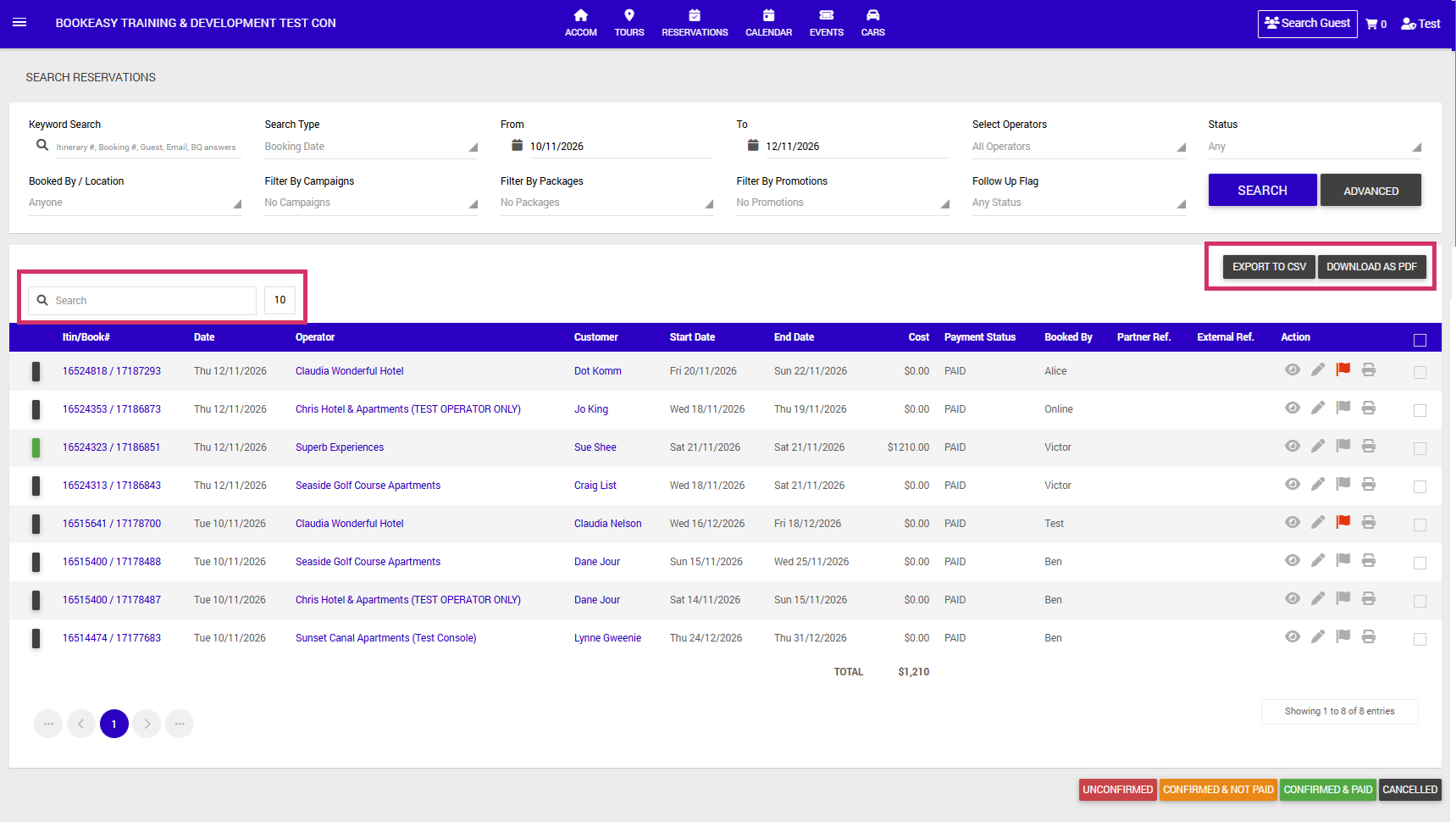
Important: The CSV export contains additional booking information that is not displayed in the Reservation Search results within your Bookit console.
The exported file includes the following information:
Reservation and Booking Details
- Itinerary Number
- Booking Number
- Control ID (isite Console ID)
- Booking Date
- Operator Name
- Product Name
- Location
- Start Date
- End Date
- Cost
- Lead Time
- Number of Nights
- Adults
- Children
- Infants
- Concession
- Students
- Observers
- Total Number of Pax
- Payment and Commission Information
- Payment
- Status
- Commission Type
- Commission Amount
- Commission Taken
- Paid to Operator
- Customer Information
- Customer Name
- Customer Password
- Customer Phone
- Customer Email
- Booking Source and Additional Information
- Booked By
- Booking Location
- Booking Type
- Country of Origin
- Booking Notes
- Client Notes
- Campaign
- Package
- Promotion
- Cancelled
- Agent Commission Returns
- Exist
- Guest Notes
- External Booking ID
- Partner Booking Reference
The CSV file can be used to review reservation details, reconcile bookings or maintain records outside the system.