When accepting a cash payment for an accommodation or tour booking, the final amount may need to be rounded to the nearest 10 cents. Cash rounding is applied manually within the booking before the final cash payment is recorded.
The process differs depending on whether the balance needs to be rounded up or rounded down.
Before you begin:
To apply cash rounding, you will need an Amendment Fee named “Rounding” configured in your console. If you do not have this fee available, please contact Bookit Support and our team can assist with adding it to your console.
Rounding Up
For example, if the Balance Owing is $152.96, the cash amount payable should be rounded up to $153.00, requiring a $0.04 adjustment.
1. Complete the accommodation or tour booking as normal until you are ready to take payment.
2. Review the Itinerary Summary in the top-left corner of the booking and note the Total Cost and Balance Owing.
3. Calculate the amount required to round the balance up to the nearest 10 cents.
4. Scroll to the bottom of the booking and select Add Amendment Fee.
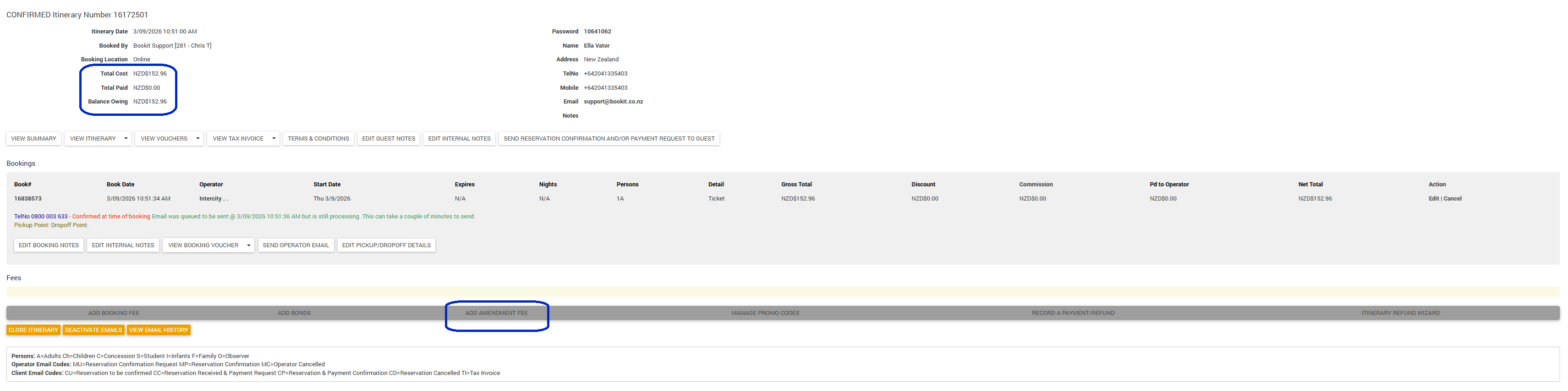
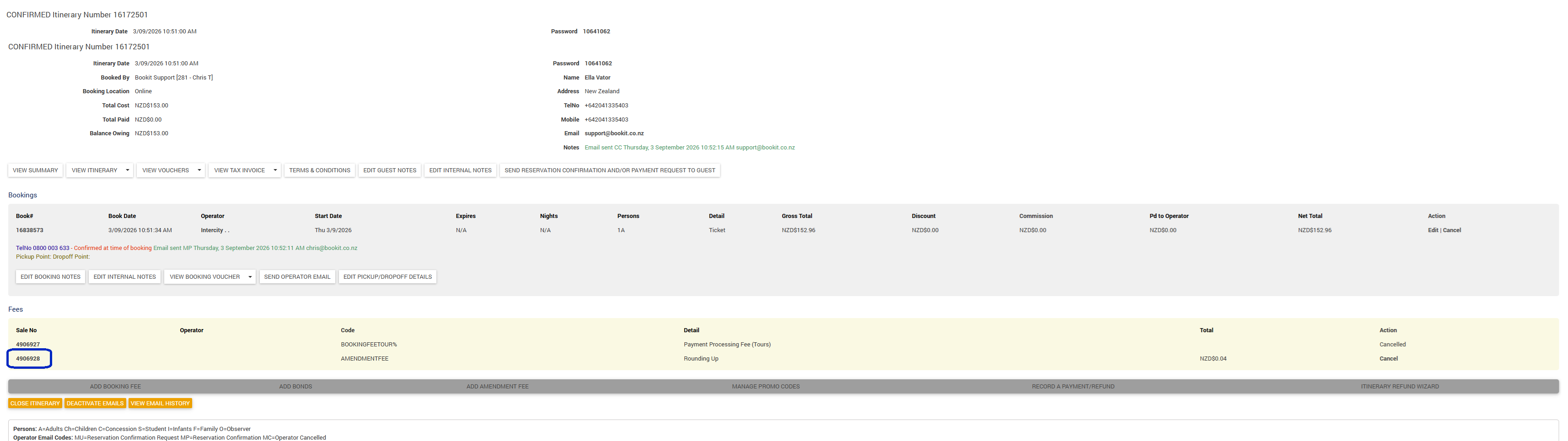
5. A fee named Rounding will be added to the Fees section.
6. Click the Sale Number associated with the Rounding fee.
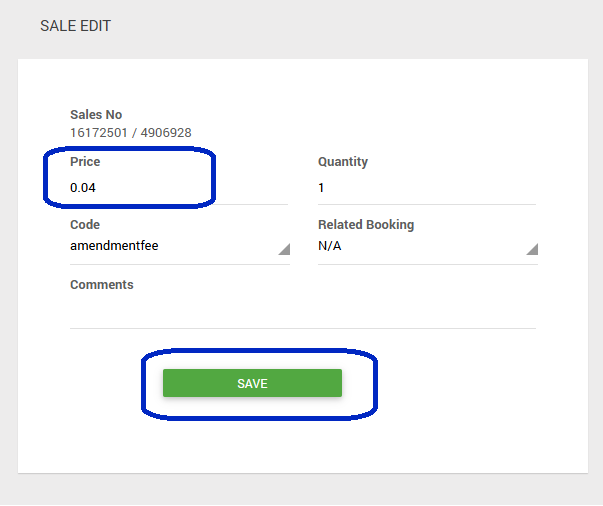
7. On the Edit Sale screen, enter the required rounding adjustment in the Price field. For example, enter $0.04.
NOTE: The amendment fee will be a set price and you will need to manually amend per booking
8. Click Save.
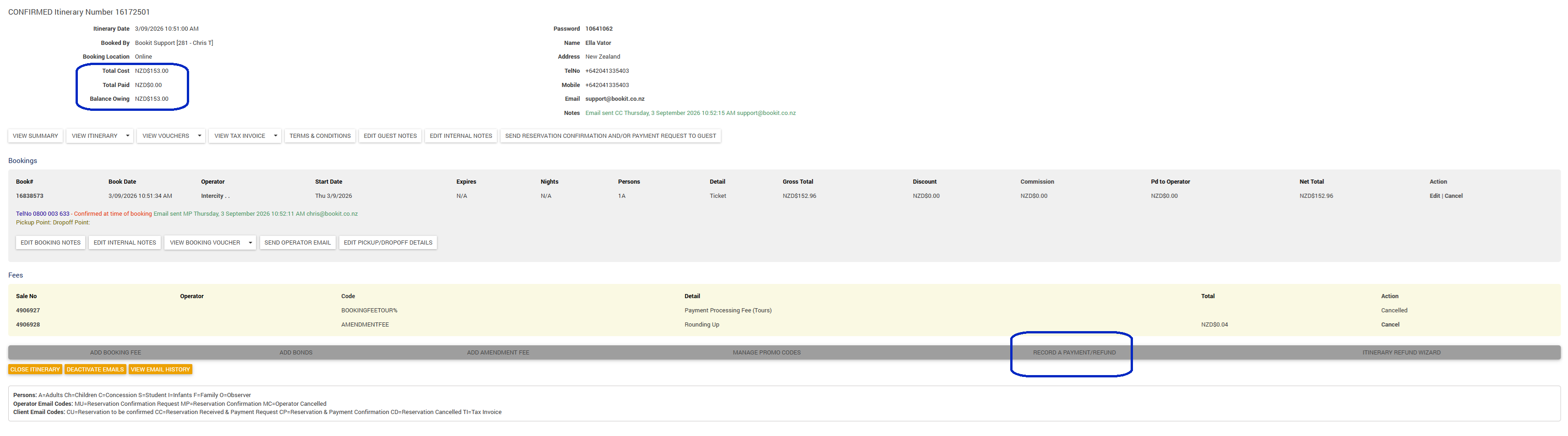
9. Return to the booking and confirm the Total Cost and Balance Owing now reflect the correctly rounded cash amount.
10. Select Record a Payment / Refund.
11. Select Cash from the Payment Type dropdown.
12. the Amount Tendered.
13. Click Save Payment to complete the transaction.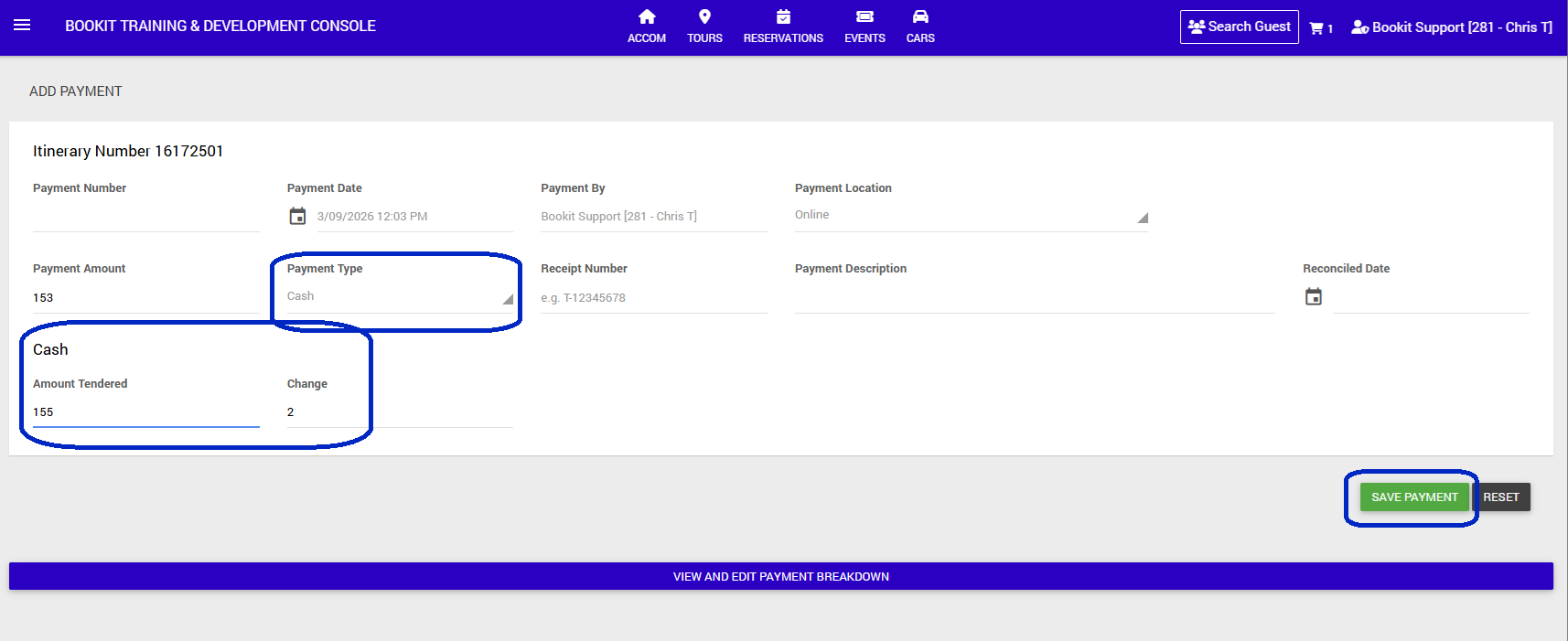
Rounding Down
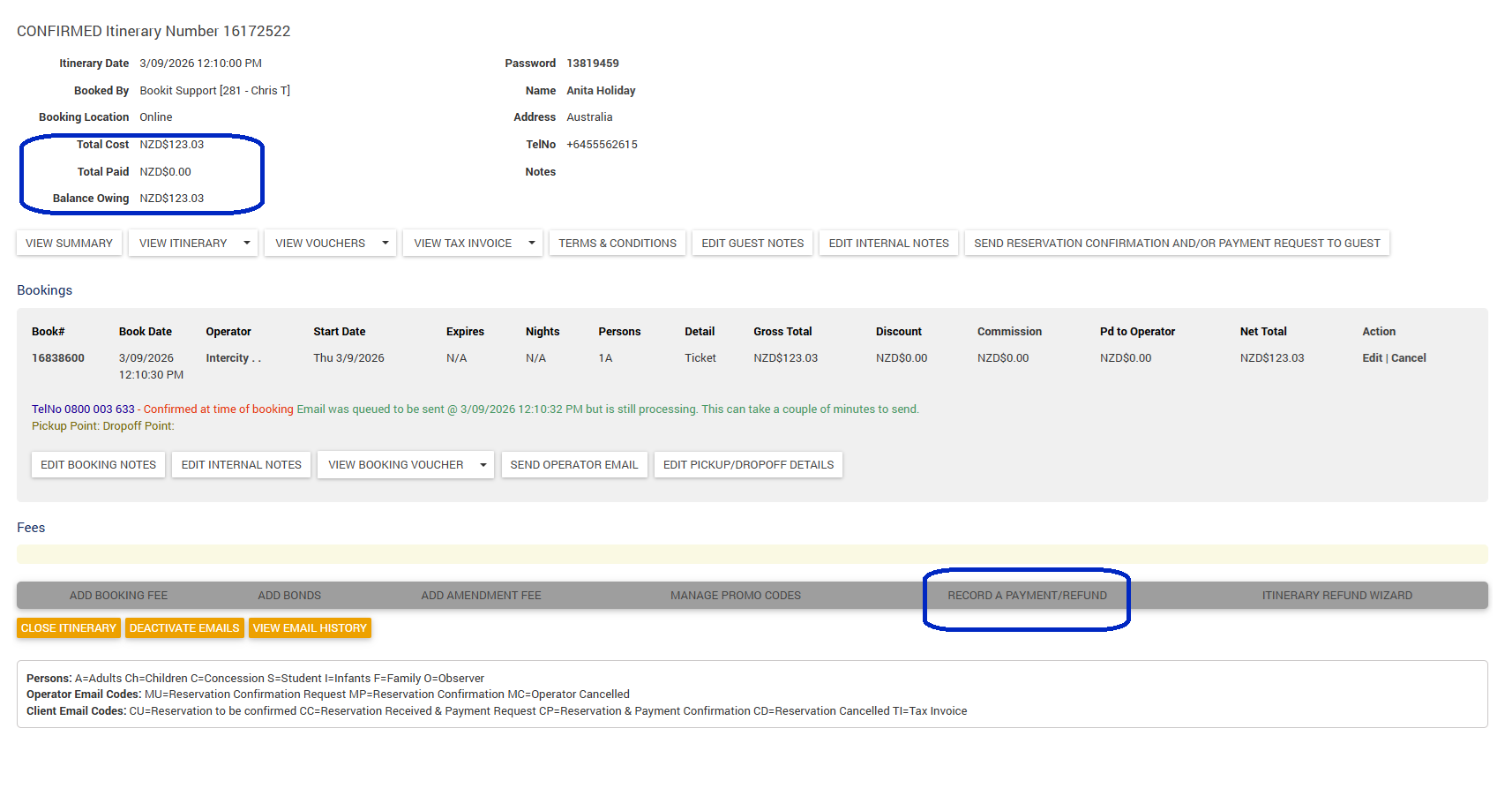
For example, if the Balance Owing is $123.03, the cash amount payable should be rounded down to $123.00, requiring a $0.03 adjustment.
1. Complete the accommodation or tour booking as normal until you are ready to take payment.
2. Review the Itinerary Summary and note the Total Cost and Balance Owing.
3. Calculate the amount required to round the balance down to the nearest 10 cents.
4. Select Record a Payment / Refund.
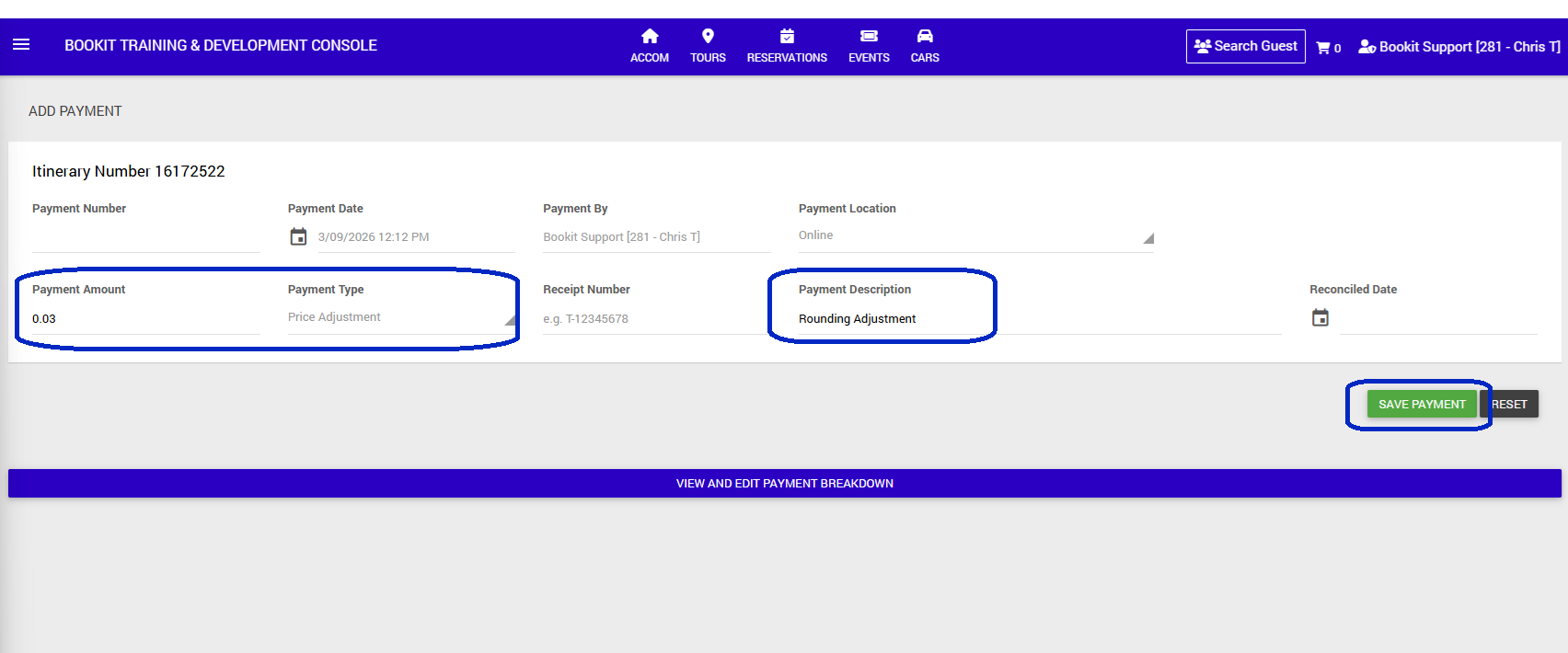
5. Select Price Adjustment as the Payment Type.
6. Enter the required adjustment in the Payment Amount field. Enter the adjustment as a positive number. For example, enter $0.03.
7. Enter Payment Description as, Rounding Adjustment
8. Click Save Payment.
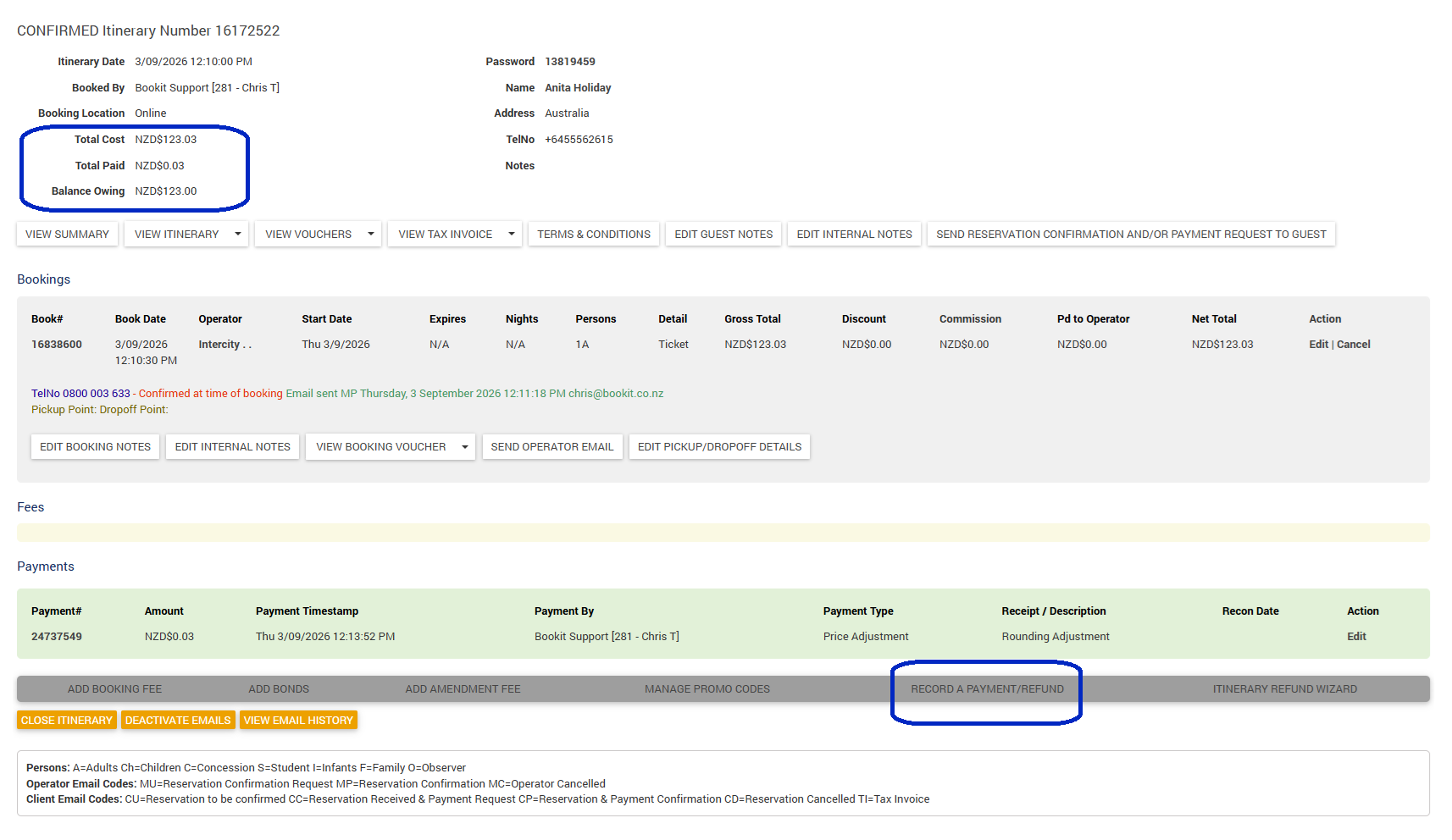
9. Return to the booking and confirm the Total Cost and Balance Owing now reflect the correctly rounded cash amount.
10. Select Record a Payment / Refund again.
11. Select Cash from the Payment Type dropdown.
12. Enter the Amount Tendered.
13. Click Save Payment to complete the cash payment.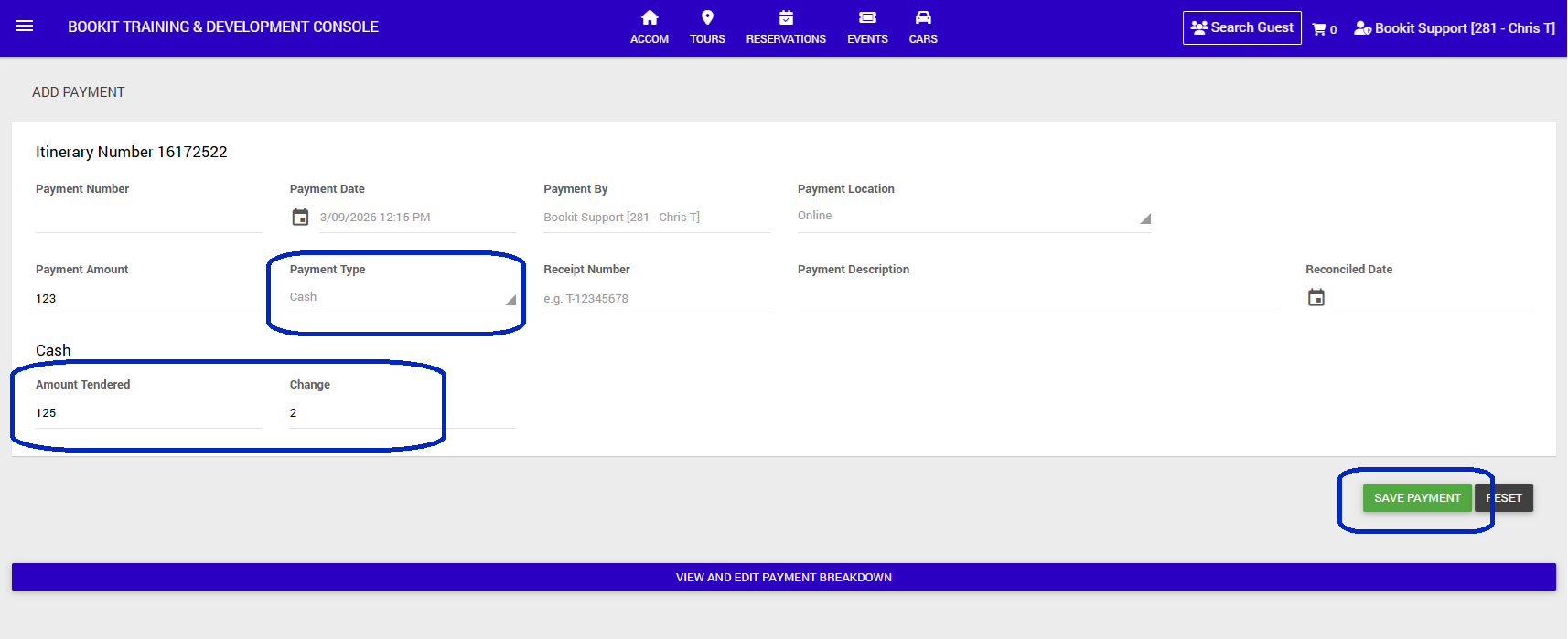
TIP: Always confirm the updated Balance Owing before recording the final cash payment to make sure the rounding adjustment has been applied correctly.