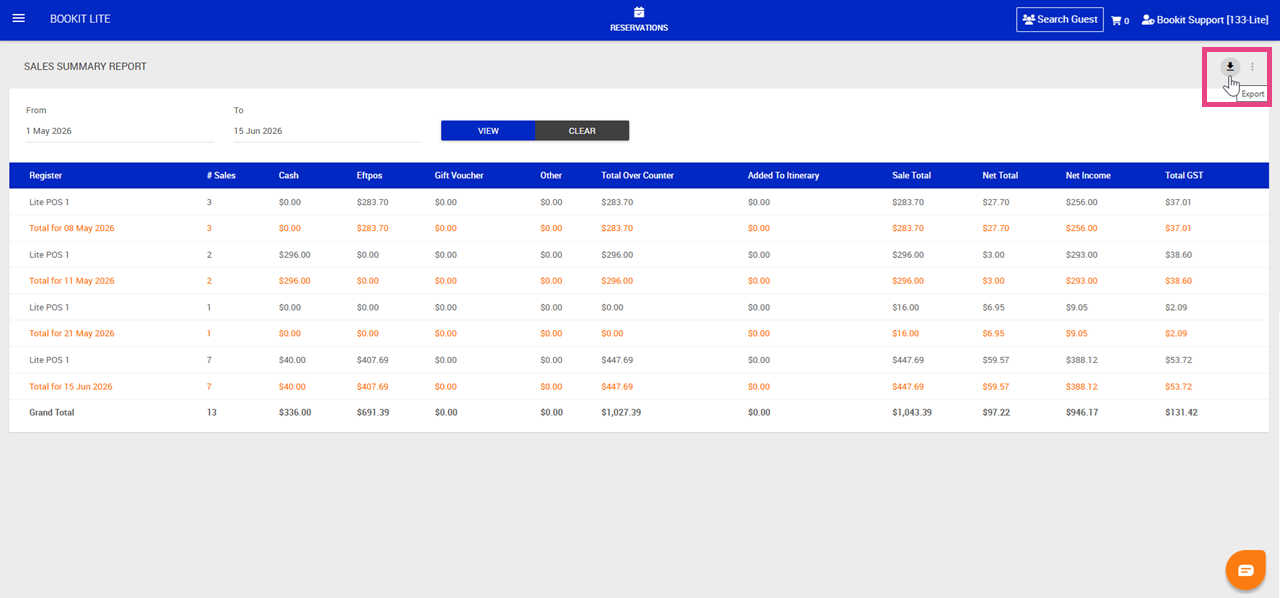
This article explains how to use the Sales Summary report within Bookit Lite POS. The Sales Summary report provides a summary of retail sales by register and payment method, making it useful for reconciliation and end-of-day balancing.
Accessing the Sales Summary Report
1. Open the left-hand navigation menu.
2. Select Retail.
3. Select Sales Summary Report.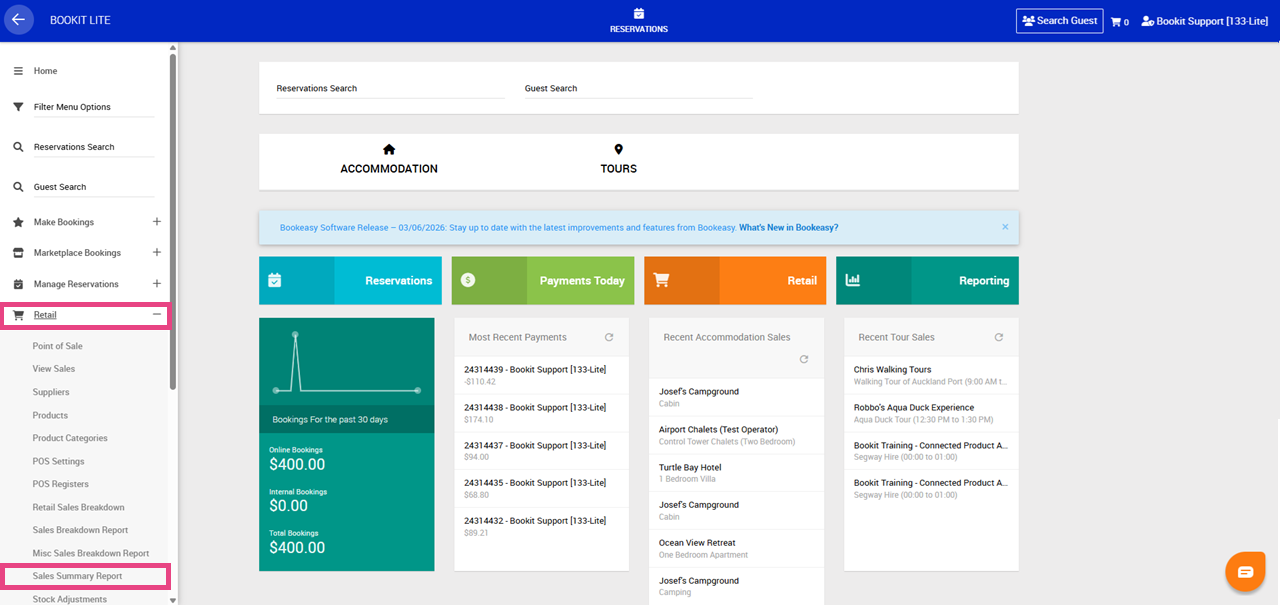
Understanding the Sales Summary Report
The Sales Summary report displays sales grouped by sale date and register.
Each date includes subtotals, with an overall total displayed at the bottom of the report for the selected date range.
Filtering the Report
Filters can be applied to narrow the sales results displayed.
Available filters include:
- From Date
- To Date
Once filters have been selected, select View to update the report results.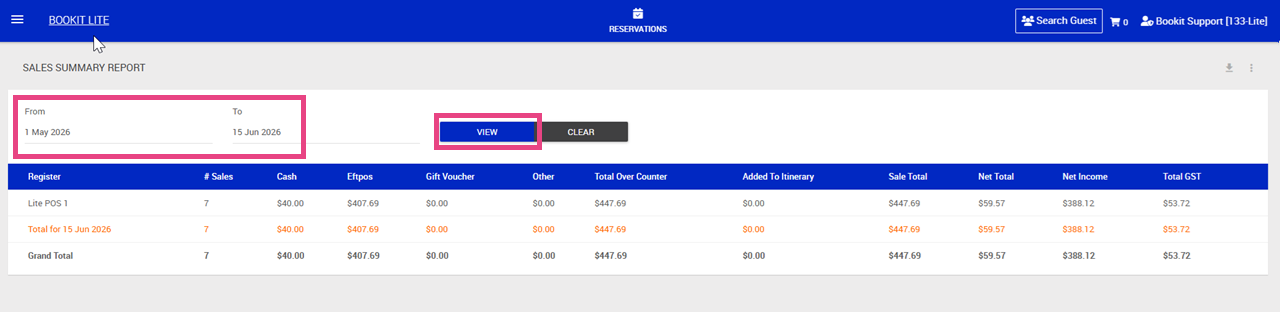
Understanding the Report Columns
Available columns include:
- Register – the register where the sale was processed
- Sales: The total number of sales transactions.
- Cash: The total value paid by cash.
- EFTPOS: The total value paid by EFTPOS or card.
- Gift Voucher: The total value paid using gift vouchers.
- Other: The total value paid using other payment methods.
- Total Over Counter: The total value paid directly through the register.
- Added to Itinerary: The value of sales added to customer itineraries.
- Sale Total: The total value of all sales.
- Net Total: The total cost of goods sold.
- Net Income: The profit generated from sales.
- Total GST: The GST component of the sales.
Exporting the Report
The Sales Summary report can be exported for further analysis or reporting.
Available export options include:
1. Export to CSV – opens the report data in Excel or Google Sheets.