This article explains how to create an accommodation or tour booking within Bookit Lite. Travel bookings are processed separately from retail sales to ensure customer credit cards can be securely tokenised and stored for booking management, cancellations, and refunds if required.
Important Note: Travel bookings can only be completed using a credit card. Credit card details should only ever be entered directly into the secure payment fields within Bookit Lite and must never be written down or stored outside the system.
Starting a Travel Booking
Travel bookings can be started from either the Retail screen or directly from the Accommodation or Tours search buttons.
Option 1: Start from Retail POS
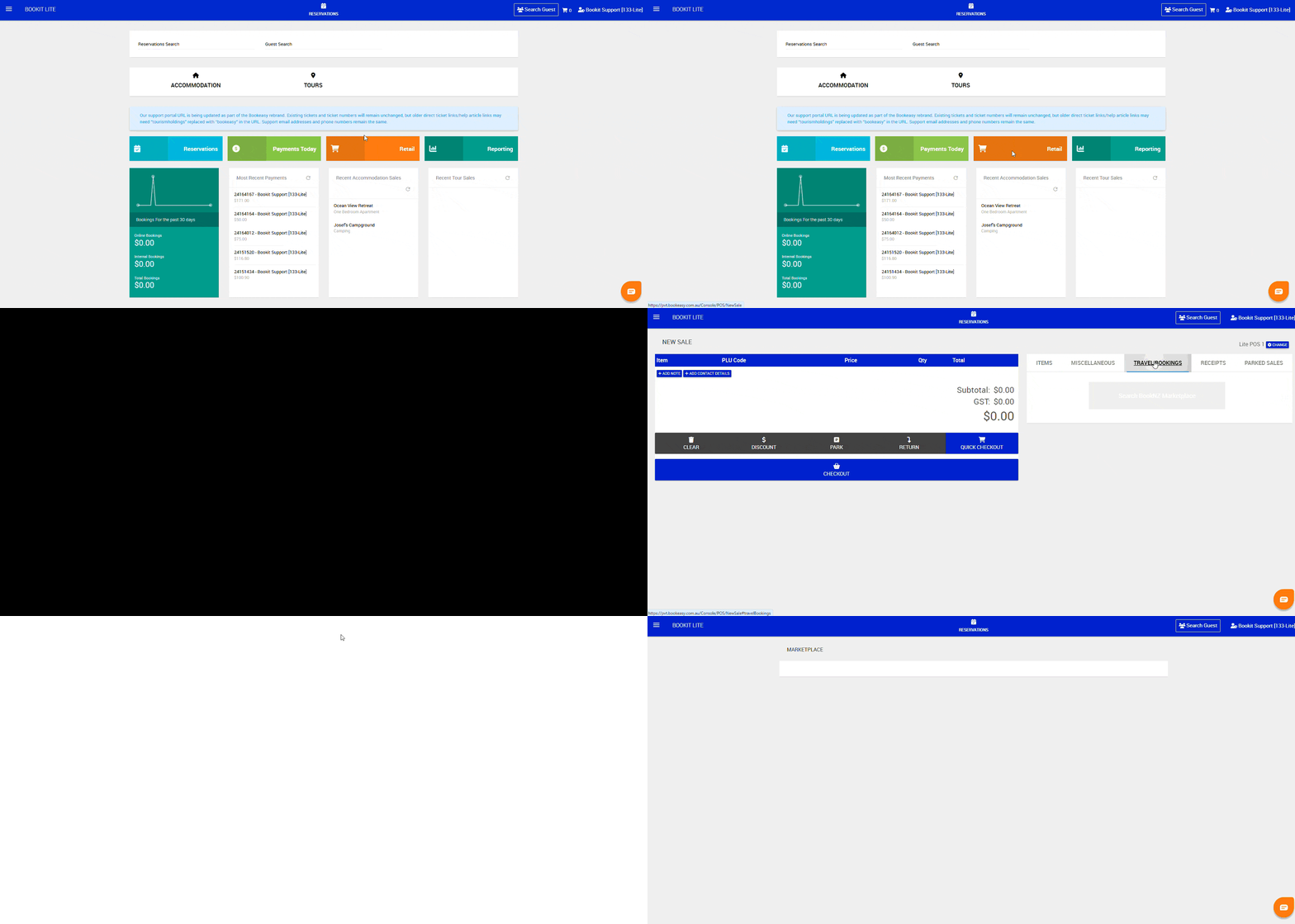
1. From the Home Page, select Retail.
2. Select your register.
3. Select the Travel Bookings tab.
4. Select Search BookNZ Marketplace.
Option 2: Start from Home Screen
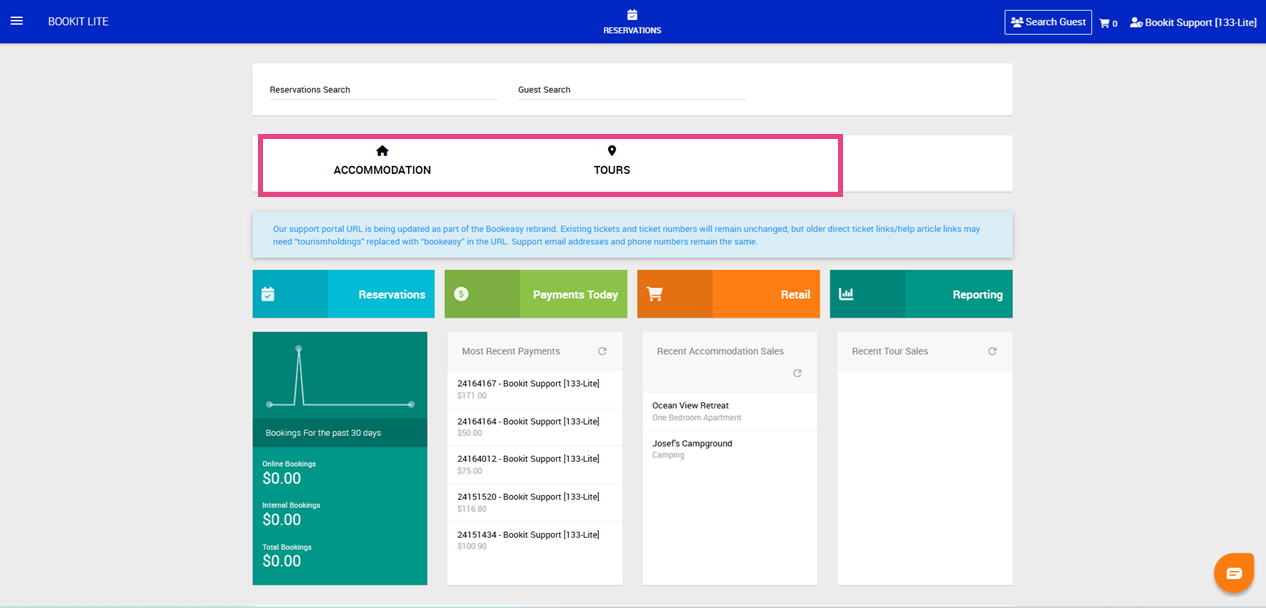
1. From the Home Page, select: Accommodation, or Tours button
Searching for Travel Products
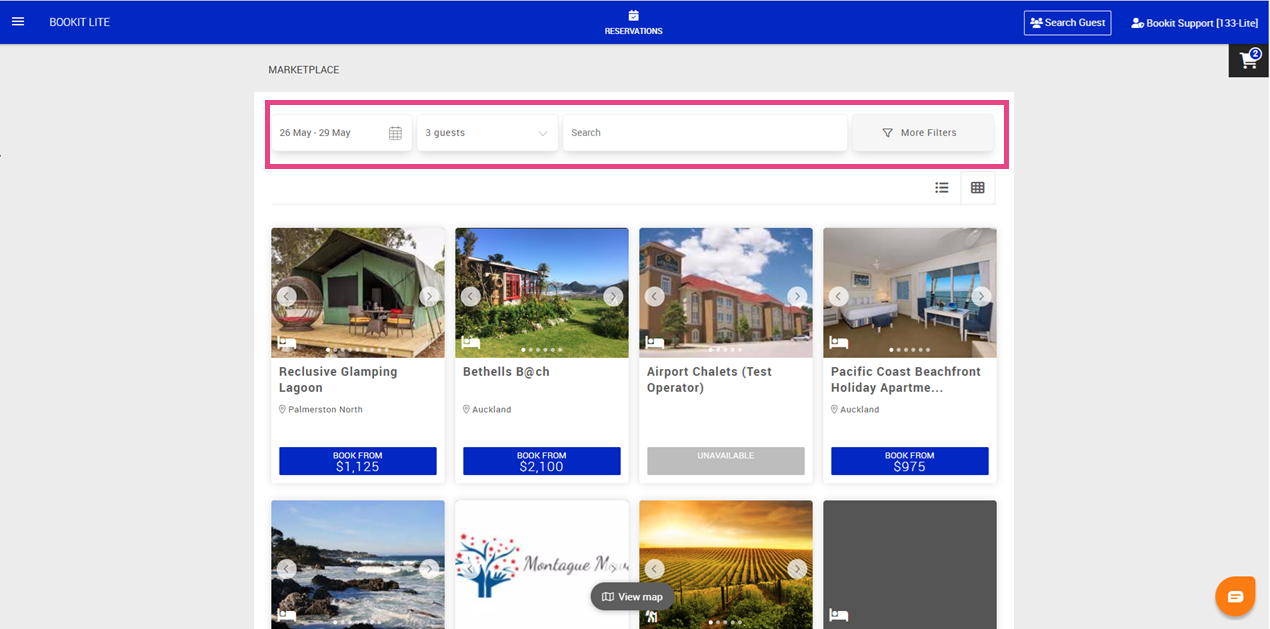
1. Enter the required search parameters:
- Travel dates
- Guest numbers
- Operator name (if known)
2. Select More Filters for advanced search options. Advanced filters may include:
- Category
- Location
- Additional attributes
3. Select Show Results.
Understanding Booking Types
There are two types of travel operators available within BookNZ Marketplace.
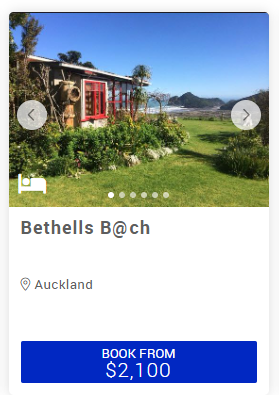
Instant Confirmation
Instant Confirmation operators can be booked immediately. These operators display a blue Book From button.
On Request
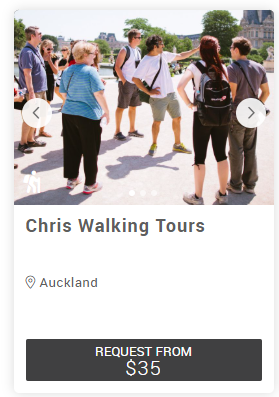
On Request operators require the booking request to be sent to the operator for confirmation of availability and pricing. These operators display a charcoal Request From button.
Viewing and Booking a Travel Product
1. Select the Book From button to view additional product details.
2. Review: Room or product types, Product images, Product descriptions
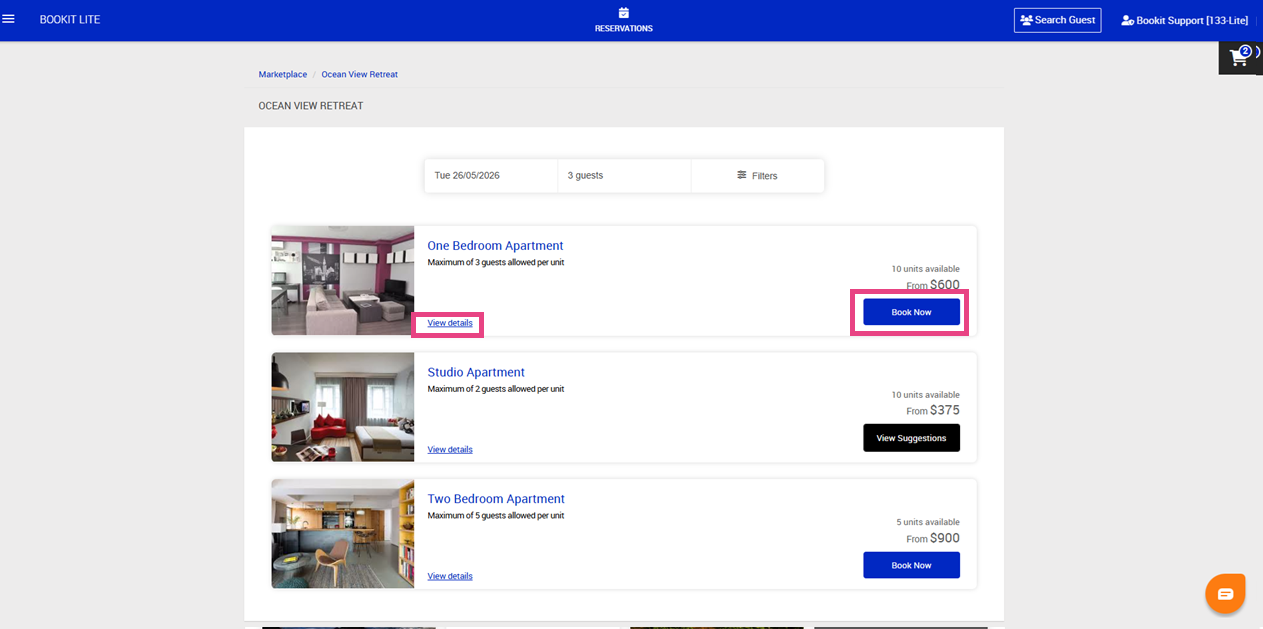
3. Select View Details for additional information if required.
4. To proceed with the booking, select Book Now.
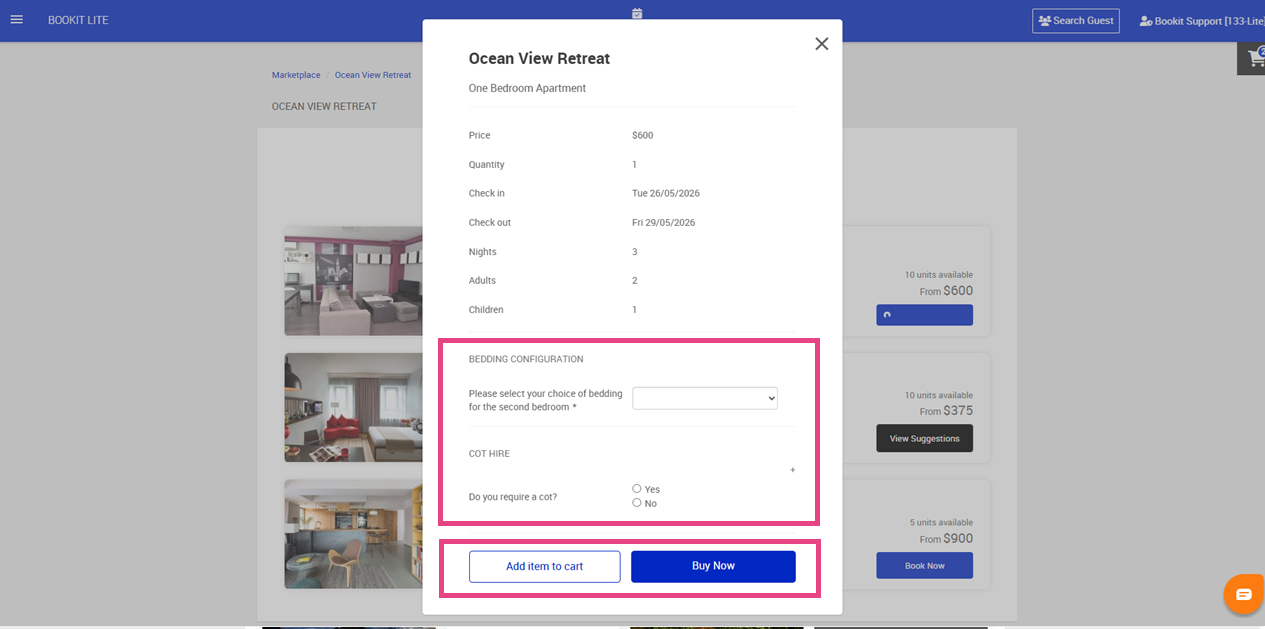
5. Complete any booking questions required by the operator.
6. Select Buy Now to complete the booking immediately, or Select Add Item to Cart to continue building the itinerary with additional travel products.
Checking Out:
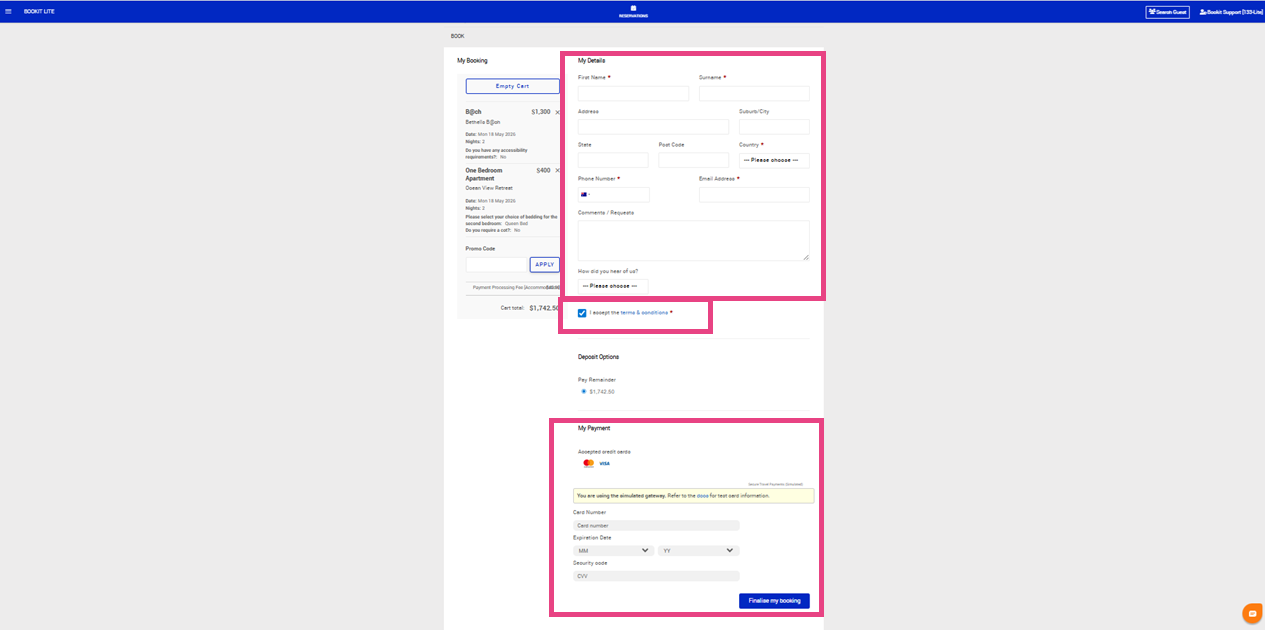
1. If not already on the checkout screen, select your shopping cart in the top right hand corner of your screen
2. Complete the following guest fields:
- First Name
- Last Name
- Address: Suburb / City, State, Postcode, Country
- Phone Number
- Email Address
- Comments / Requests
- How did you hear about us
3. Select and review the Terms and Conditions with the guest so important booking conditions can be clearly communicated. Once completed, check I accept the terms & conditions
4. Enter guest credit card information: Card Number, Expiration Date, Security Code
5. Select Finalise my booking
6. The customer and operator will receive a confirmation email.
Recommended Credit Card Handling Practices
When entering customer credit card details:
- Ensure the customer is present during entry where possible.
- Do not write down or record credit card details outside of Bookit Lite.
- Avoid reading card numbers aloud.
- Ensure the screen is not visible to other customers.
- Only enter card details directly into the secure payment fields within Bookit Lite.
- Follow your organisation’s PCI and privacy procedures at all times.