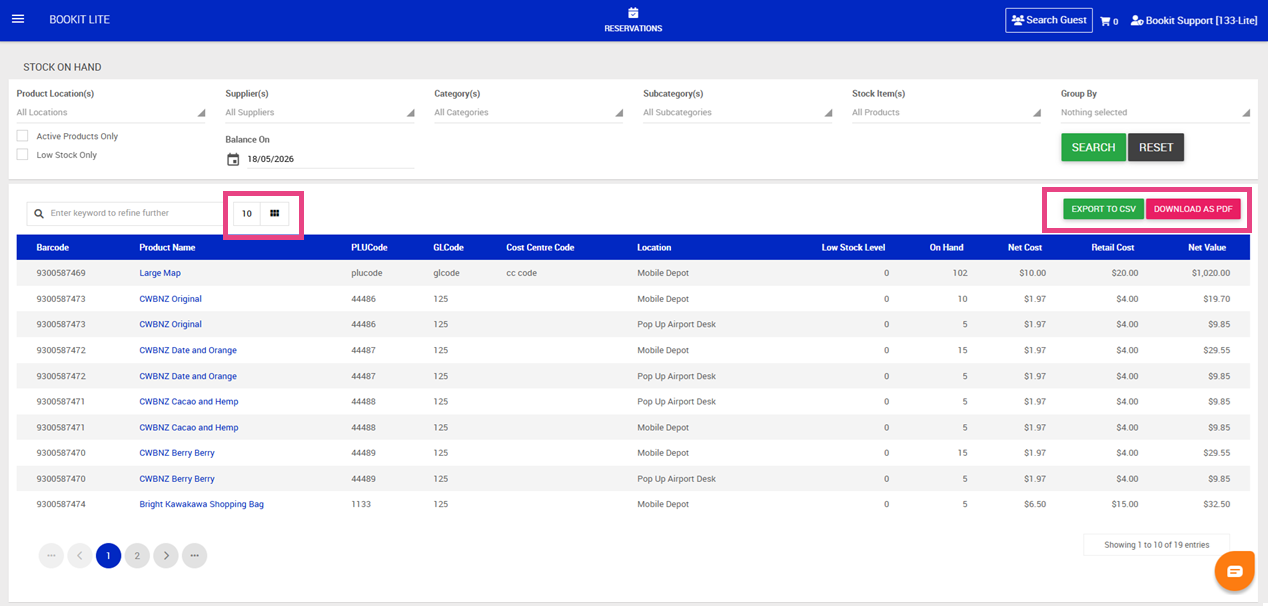
This article explains how to view current stock levels within Bookit Lite POS. The Stock on Hand report displays inventory quantities per stock location and can be filtered by supplier, category, product, and stock level.
Accessing the Stock on Hand Report
1. Open the left-hand navigation menu.
2. Select Retail.
3. Select Stock on Hand.
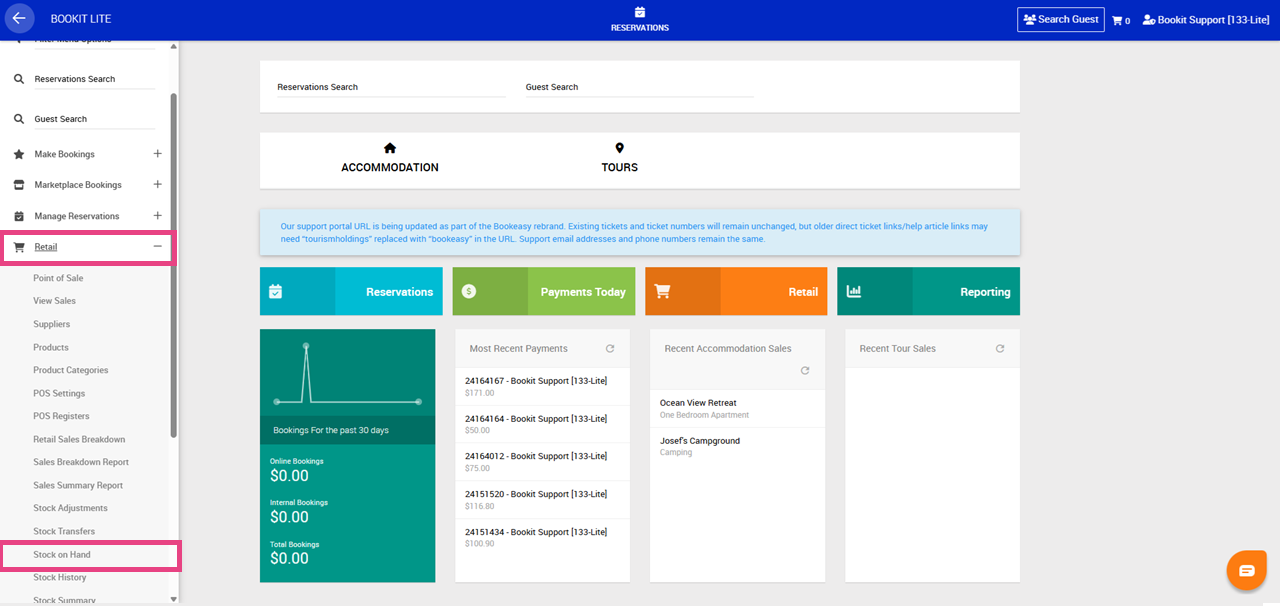
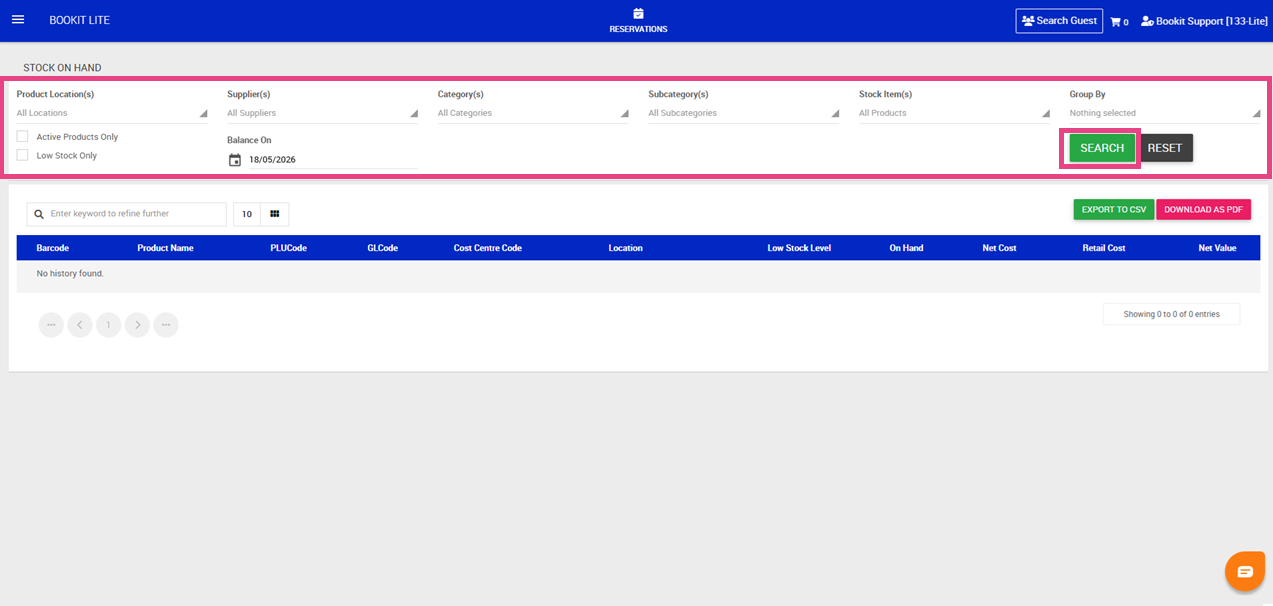
Filtering the Report
1. Apply desired filters. Available filters include:
- Stock Location
- Supplier
- Category or Sub Category
- Stock Items
- Display Style
- Display archived products
- Display stock below the prescribed low stock level
- Display stock levels from a past date
2. Once filters have been selected, select Search.
Display Options
Display Options control how products are grouped within the report.
Available options include:
- Group by Product – displays products grouped by product name
- Group by Product Category – displays products grouped by category
- Group by Supplier – displays products grouped by supplier
Depending on the selected option, product details such as barcode, PLU code, location, retail price, net cost, and stock on hand will display underneath each group heading.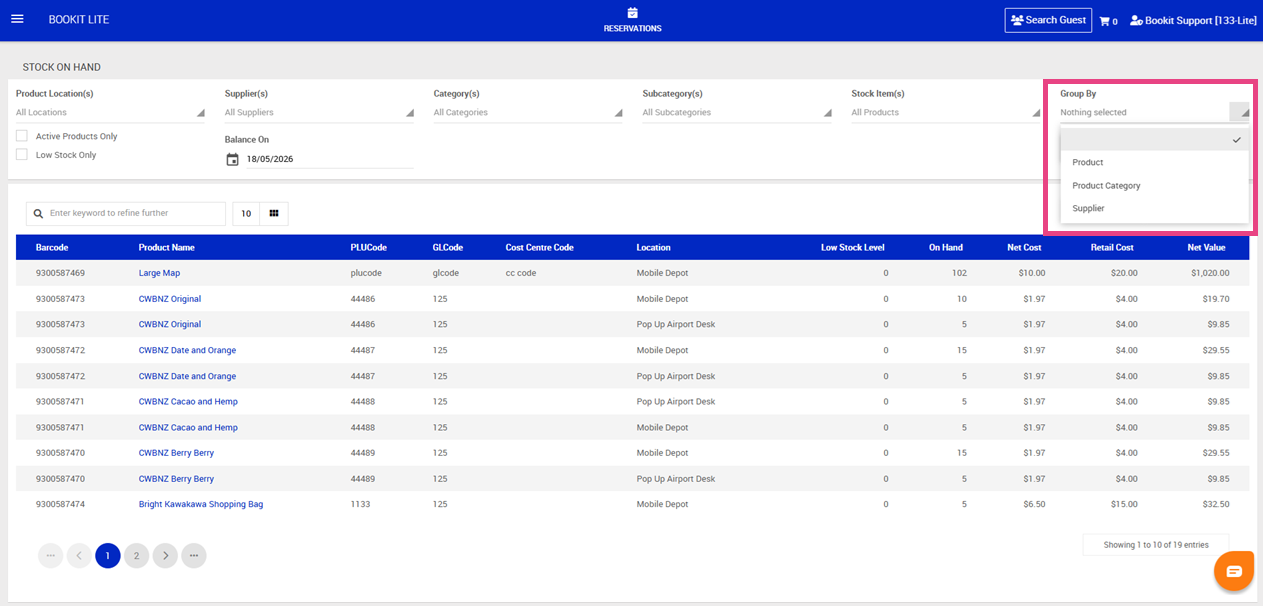
Available Columns
The Stock on Hand report may display the following information:
- Barcode
- Product Name
- PLU Code
- Accounting Codes
- Location
- Low stock level
- Current stock on hand
- Net cost per stock item
- Retail price per stock item
- Total net value of stock held
1. To view more than 10 per page, click the number 10 above the table
2. To view or hide columns select the grid icon
3. Select Export to CSV to download for Excel (This will export all items not just what is showing on the screen) or
4. Select Download as PDF (This will export all items not just what is showing on the screen)