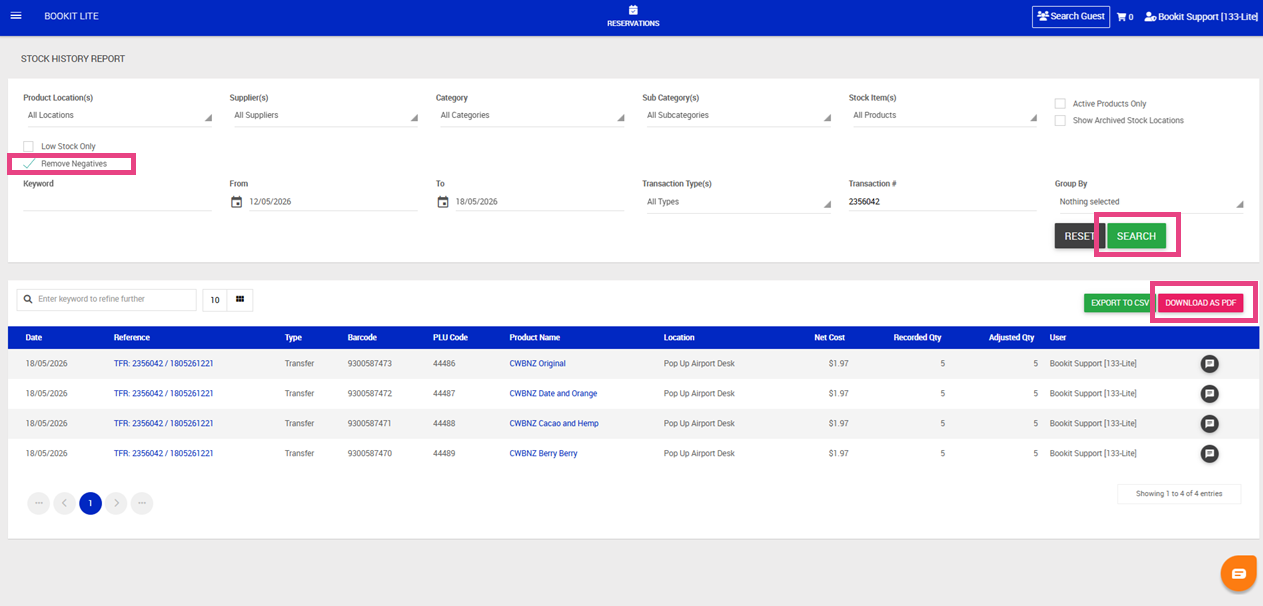
This article explains how to transfer stock between stock locations within Bookit Lite POS. Stock transfers are used to move inventory from one stock location to another while maintaining accurate stock levels.
Accessing Stock Transfers
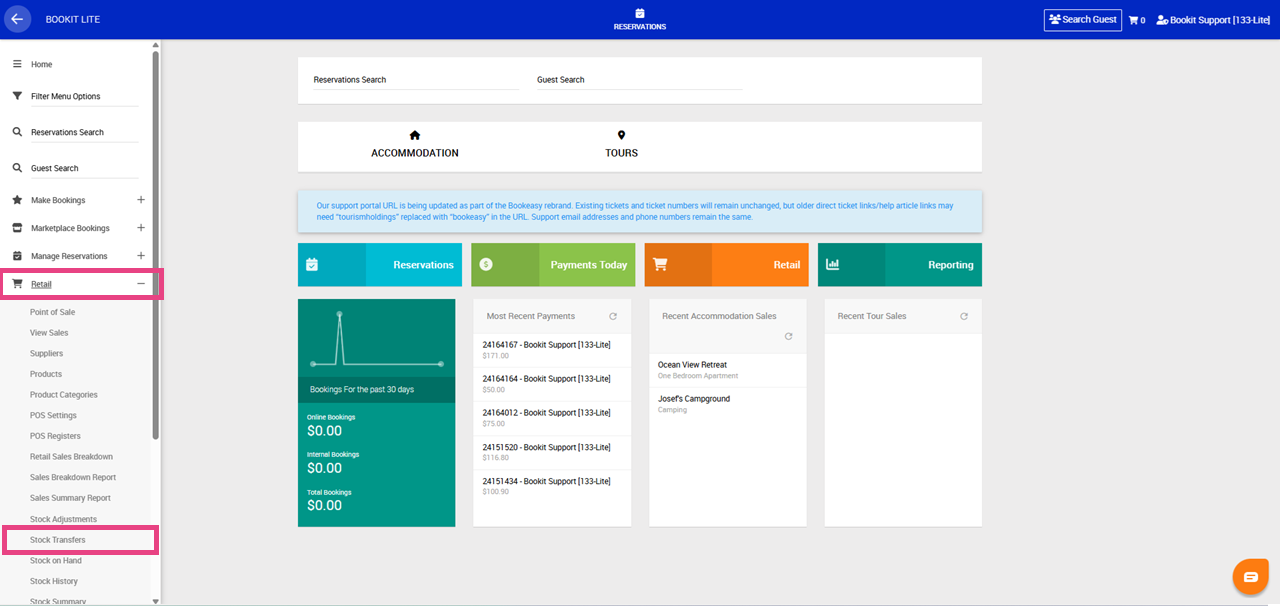
1. Open the left-hand navigation menu.
2. Select Retail.
3. Select Stock Transfers.
Searching for Products
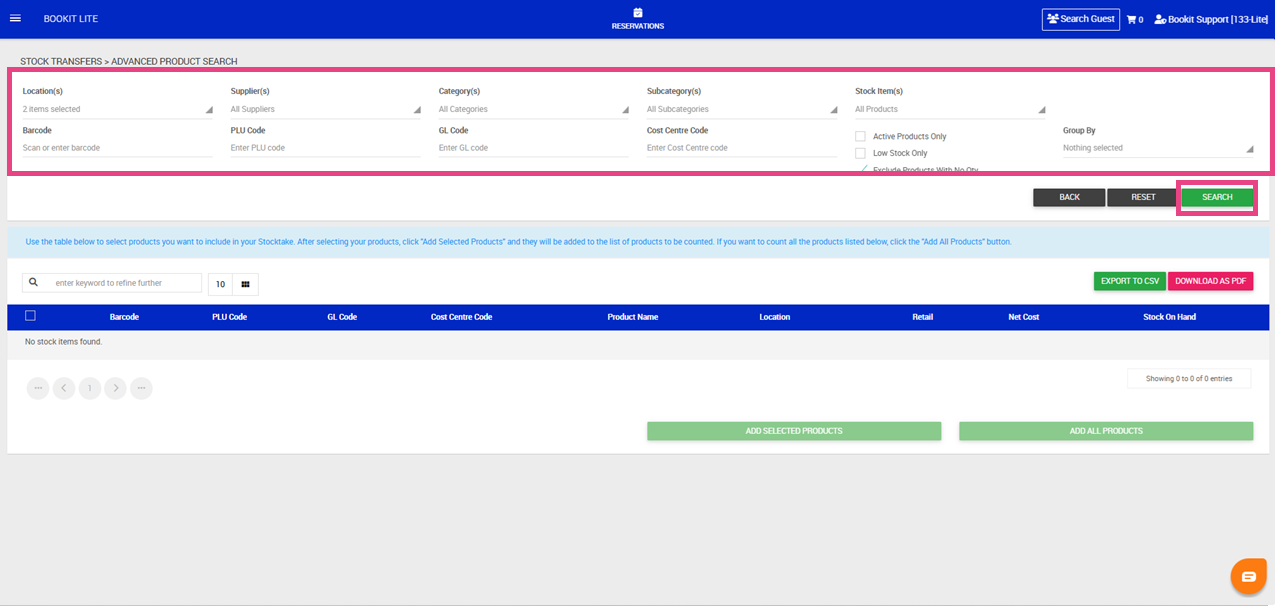
1. Select Advanced Search to display all available filters.
2. Apply the required filters. Available filters include:
- Stock Locations
- Suppliers
- Categories and Sub Categories
- Products
- Barcode
- PLU Code
- Accounting Code
- Display Options
3. Select Search.
Display Options
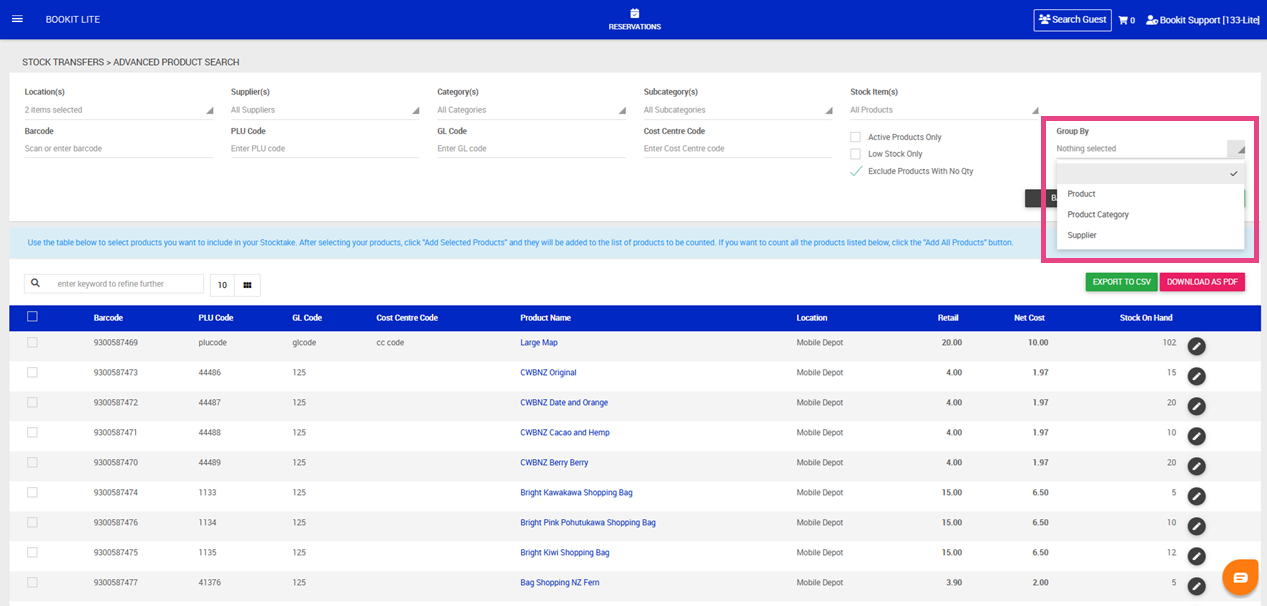
Display Options control how products are grouped during the stock transfer process.
Available options include:
- Group by Product – displays products grouped by product name
- Group by Product Category – displays products grouped by category
- Group by Supplier – displays products grouped by supplier
Depending on the selected option, product details such as barcode, PLU code, location, retail price, net cost, and stock on hand will display underneath each group heading.
Updating Product Pricing
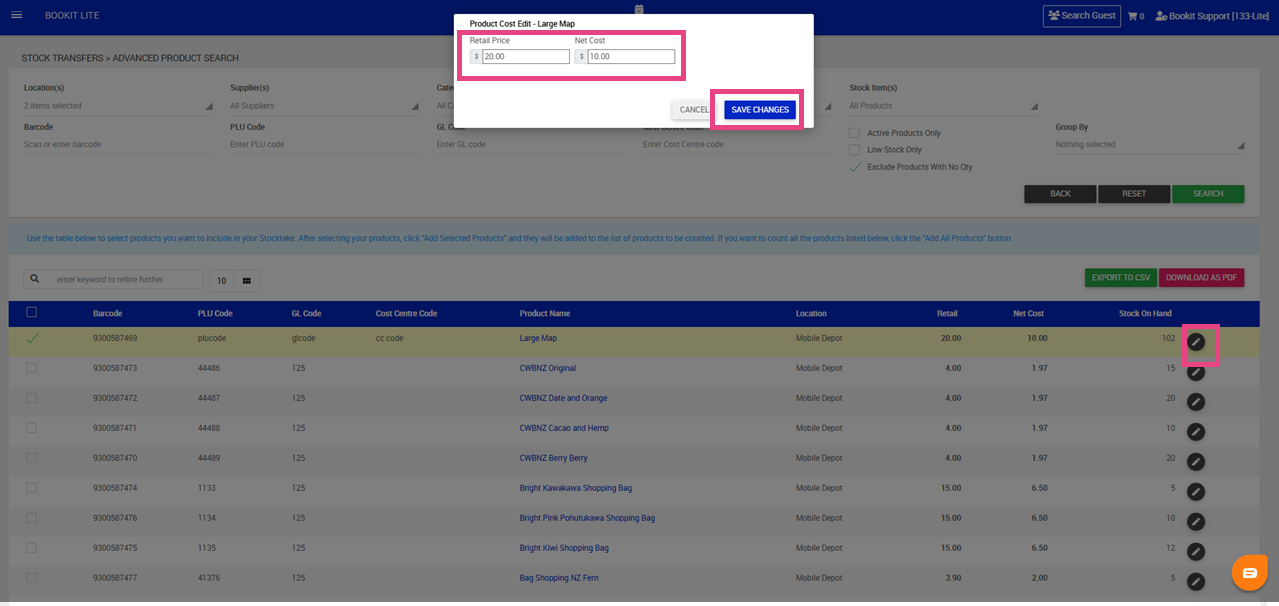
Retail price and net cost can be updated during the stock transfer process if required.
To update pricing
1. Select the pencil icon beside the product.
2. Update: Retail Price and/or Net Cost.
3. Save the changes.
Selecting Products
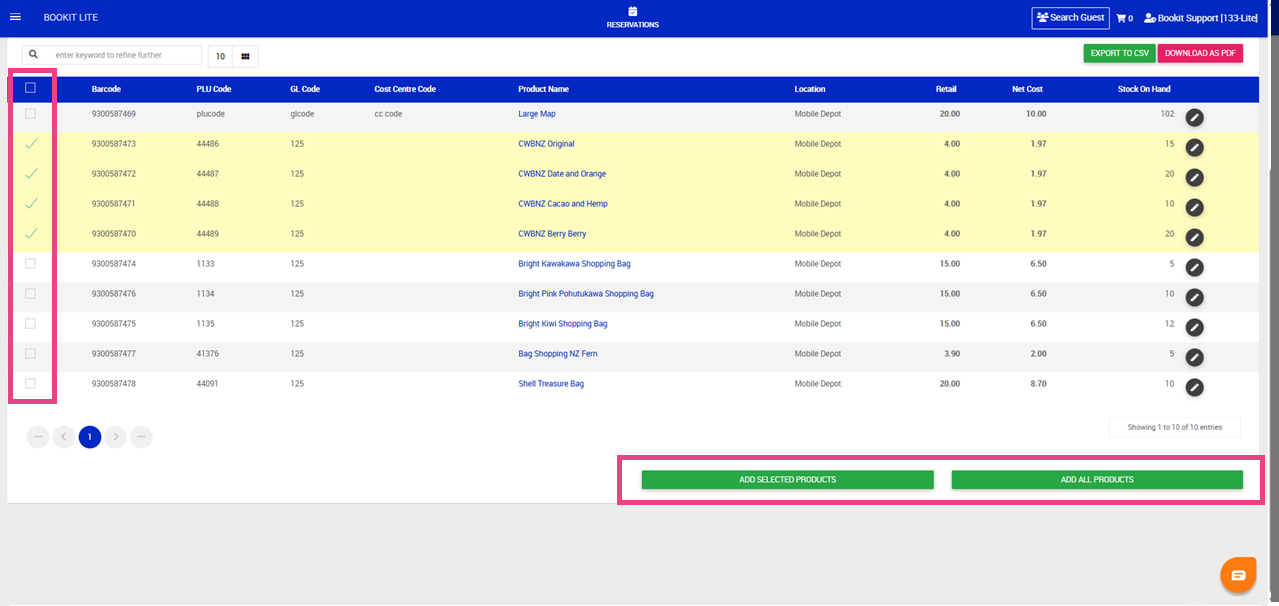
Products can be individually selected or added in bulk.
To select products
1. Select the checkbox beside the required products and select, Add Selected Products, or
2. Add All Products.
3. The selected products will move into the stock transfer screen.
Completing the Stock Transfer
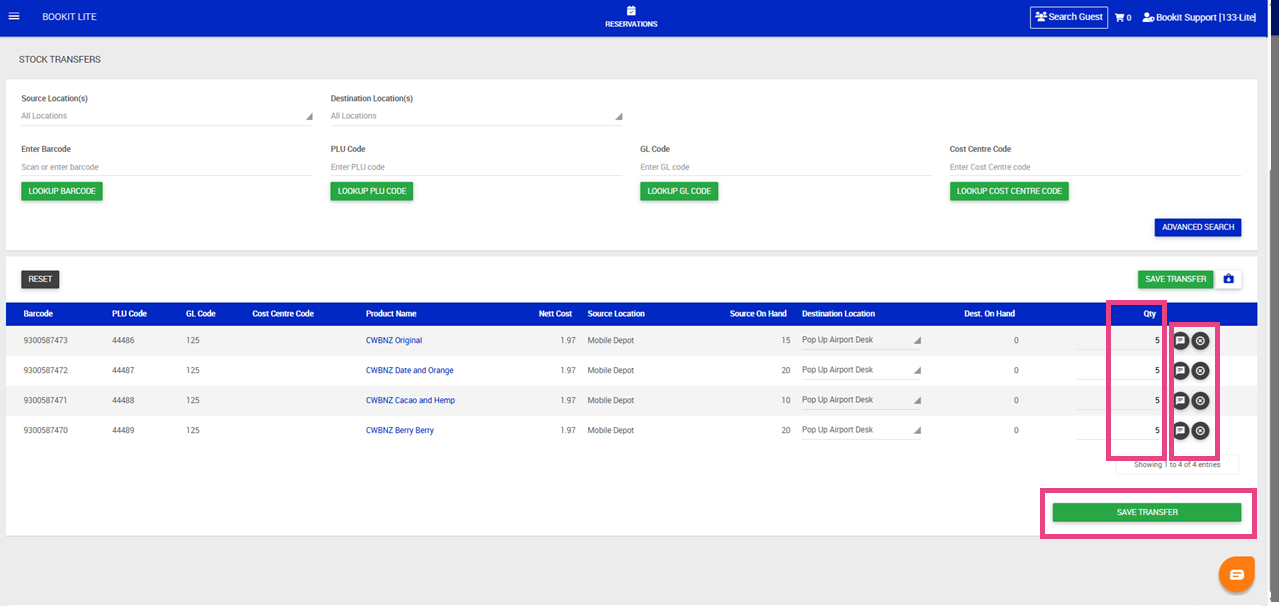
1. Review the Source On Hand column to confirm the current stock available at the source location.
2. Select the required Destination Location for each product.
3. Enter the quantity of stock to be transferred in the Quantity field.
4. Add notes if required using the speech bubble icon.
5. Remove products from the transfer using the X icon if required.
6. Select Save Transfer
7. A pop-up window will appear.
8. Enter: Reference number and Comments (if required)
9. Select Submit.
Viewing Previous Stock Transfers
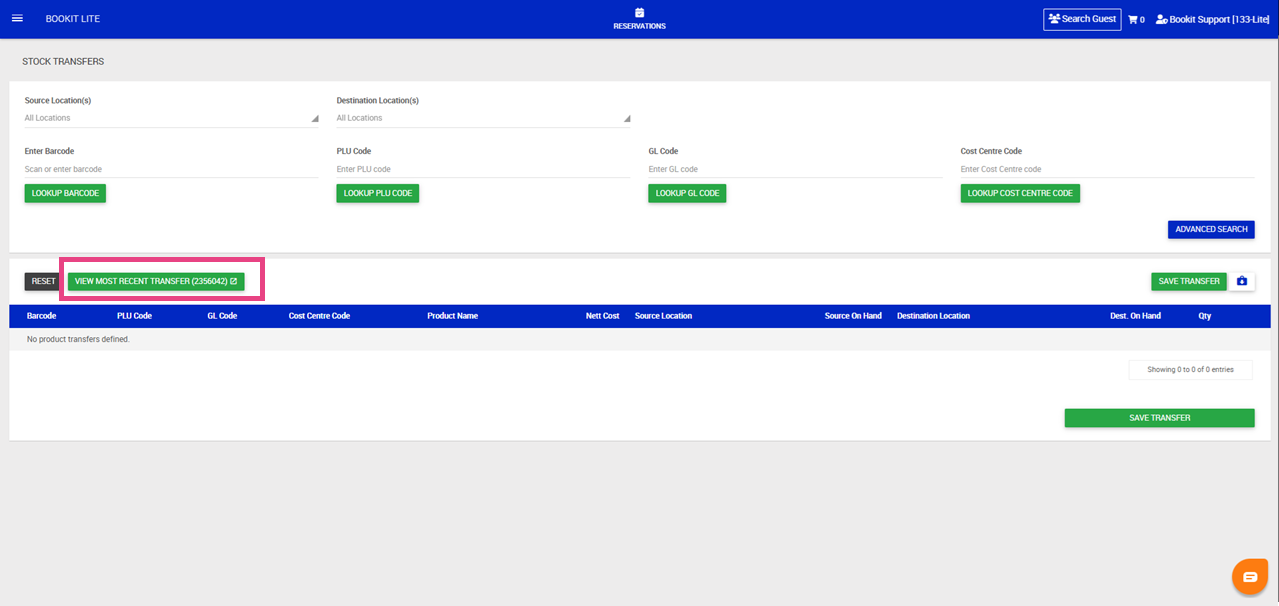
Previous stock transfers can be viewed from the Stock Transfers screen.
To view previous stock transfers
1. Open the left-hand navigation menu.
2. Select Retail.
3. Select Stock Transfers.
4. Select View Most Recent Stock Transfers.
Printing a Packing Slip
Packing slips can be generated for previous stock transfers.
To print a packing slip
1. Open the left-hand navigation menu.
2. Select Retail.
3. Select Stock Transfers.
4. Select View Most Recent Stock Transfers.
5. Click on the Reference number of the Stock Transfer you wish to print
6. Click Remove Negatives from the filters > Select Search
7. Select Download as PDF.