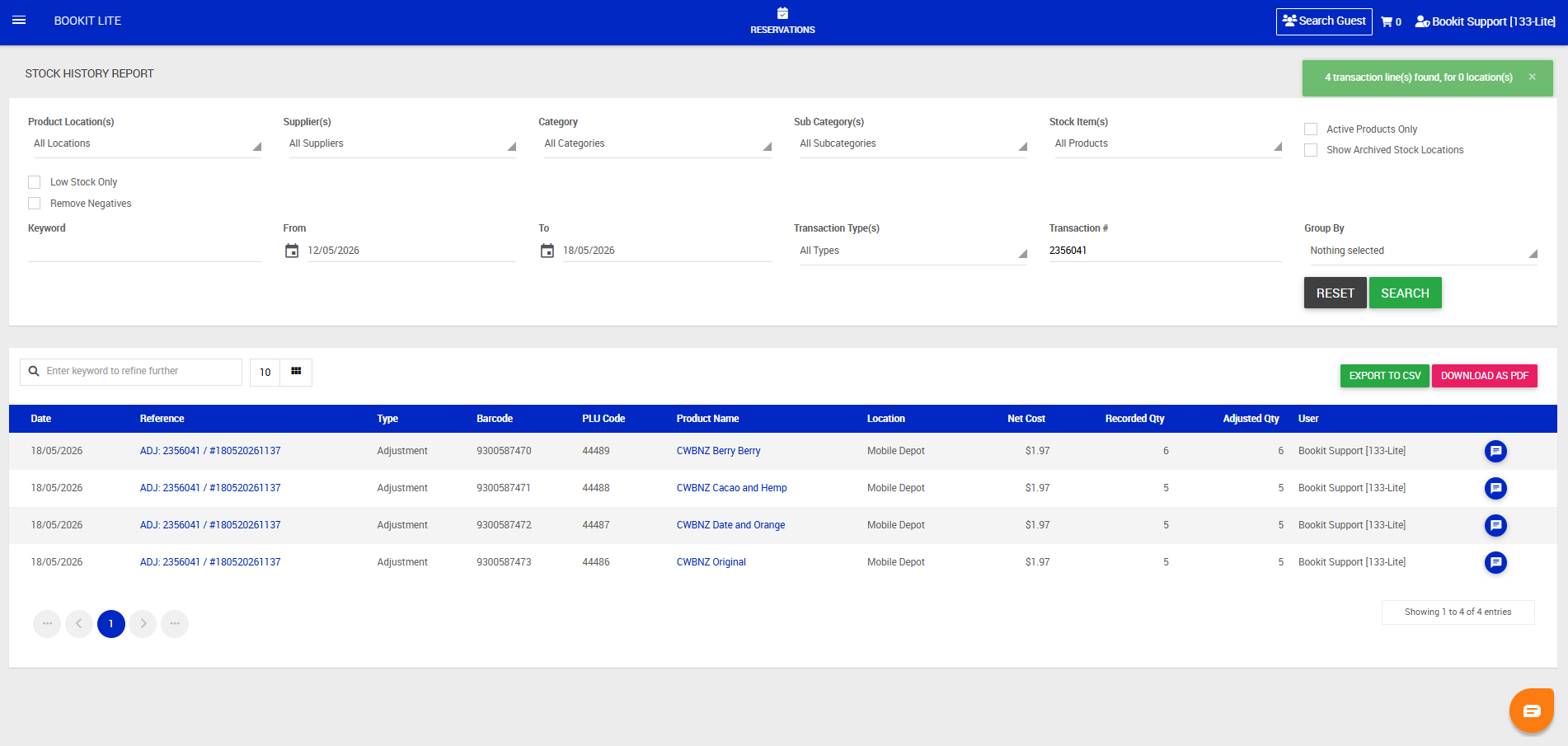
This article explains how to process stock adjustments within Bookit Lite POS. Stock adjustments are generally used when stock is ordered and received. Supplier invoices can be entered as pending adjustments and finalised once stock has physically arrived.
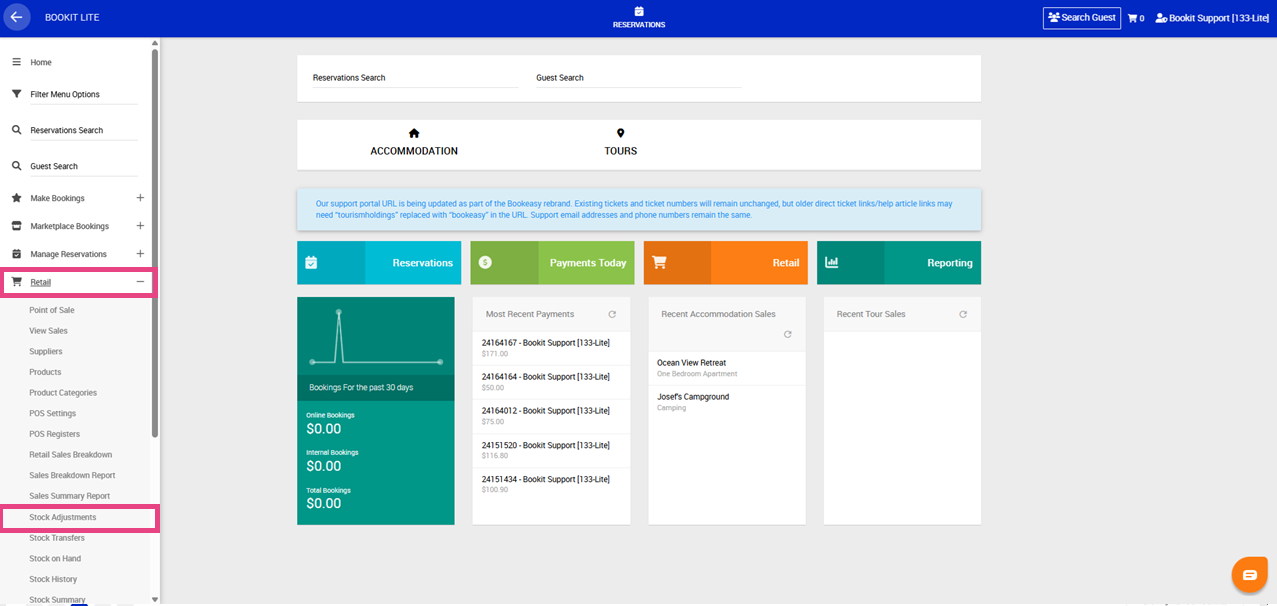
Accessing Stock Adjustments
1. Open the left-hand navigation menu.
2. Select Retail.
3. Select Stock Adjustments.
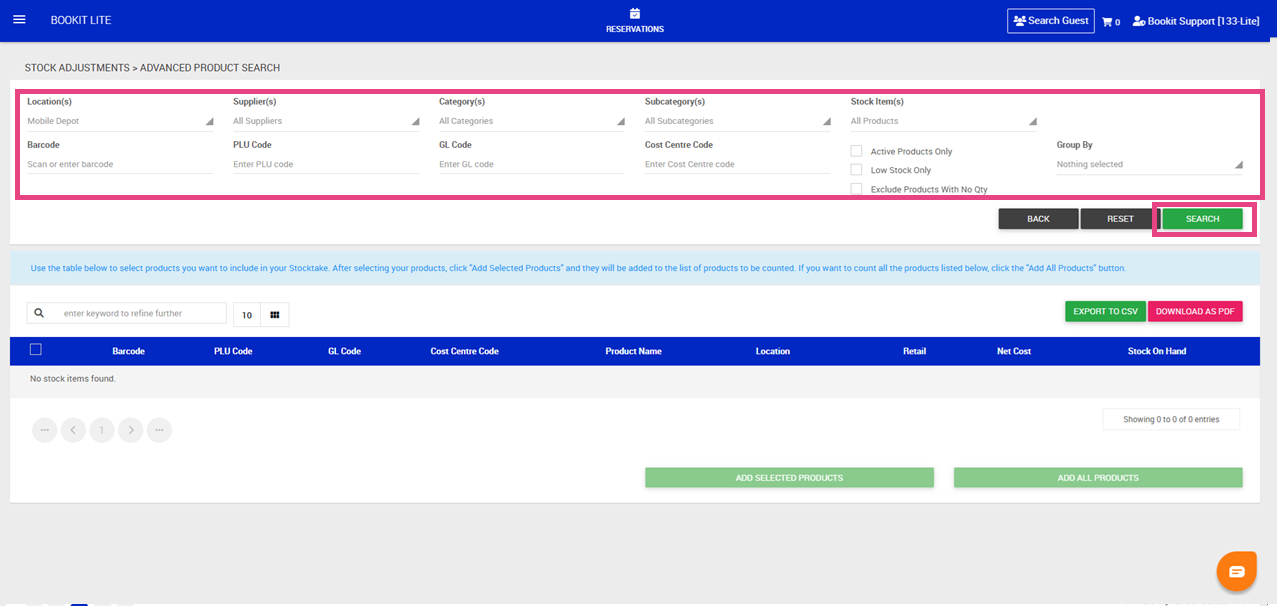
Searching for Products
1. Select Advanced Search to display all available filters.
2. Apply the required filters. Available filters include:
- Stock locations
- Suppliers
- Categories and Sub Categories
- Products
- Barcode
- PLU Code
- Accounting Codes
- Display Options
3. Select Search.
Display Options
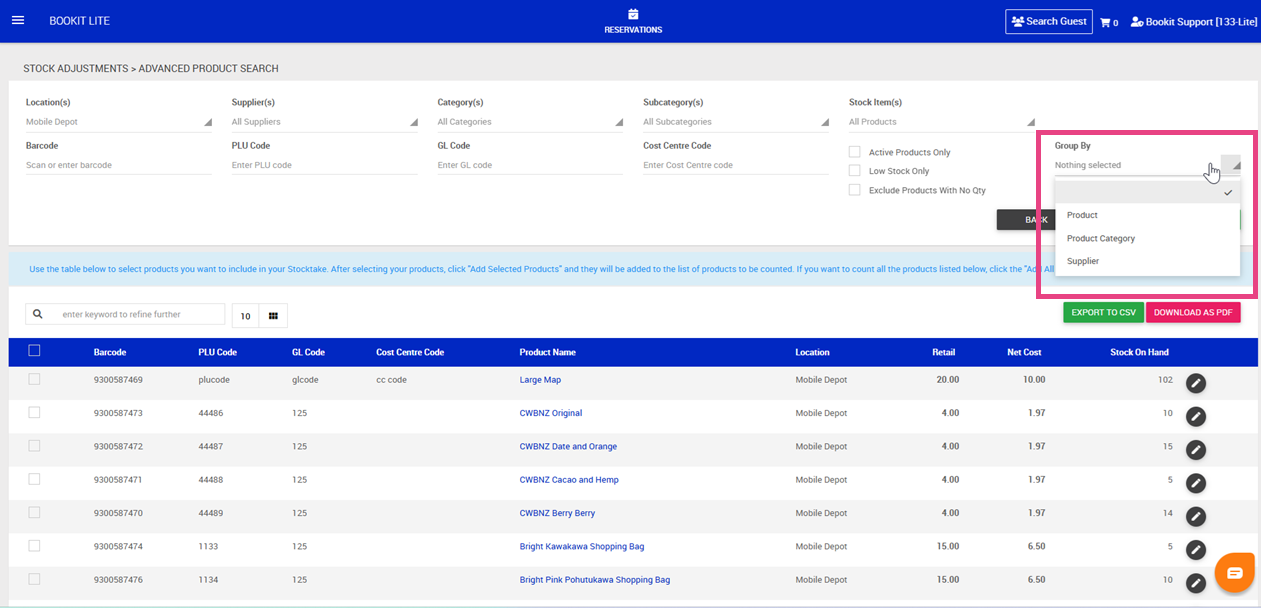
Display Options control how products are grouped during the stock adjustment process.
Available options include:
- Group by Product – displays products grouped by product name
- Group by Product Category – displays products grouped by category
- Group by Supplier – displays products grouped by supplier
Depending on the selected option, product details such as barcode, PLU code, location, retail price, net cost, and stock on hand will display underneath each group heading.
Selecting Products
Products can be individually selected or added in bulk.
To select products
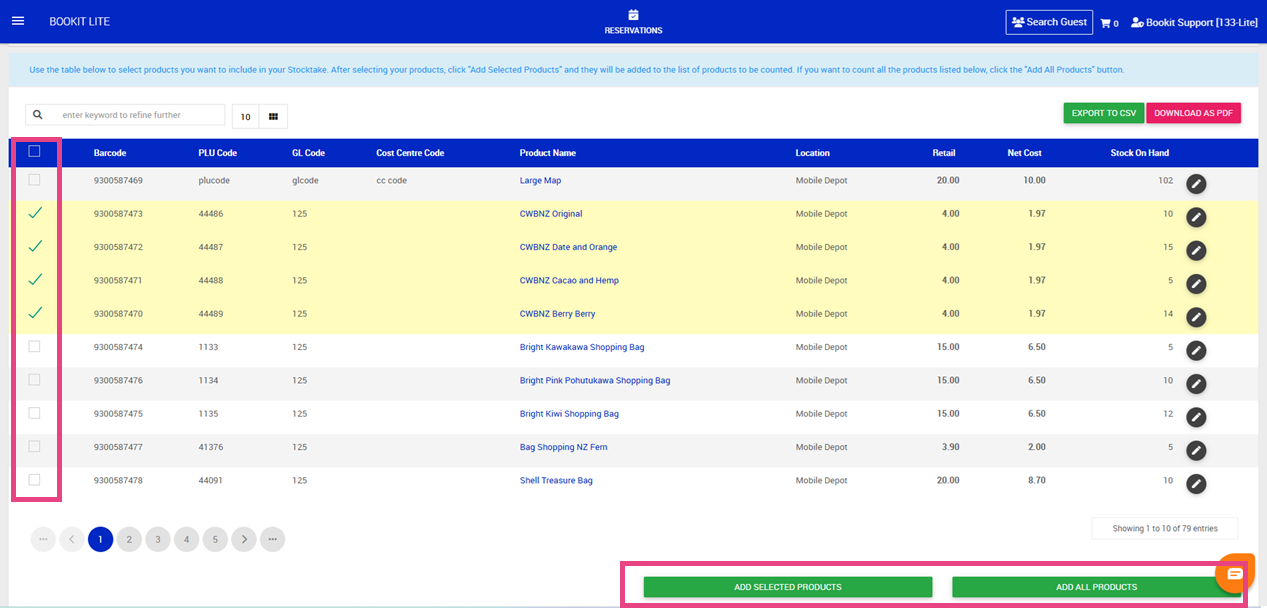
1. Select the checkbox beside the required products and select Add Selected Products, or
2. Add All Products
The selected products will move into the stock adjustment screen.
Entering Stock Quantities
Enter the quantity of stock received for each product.
To enter stock quantities
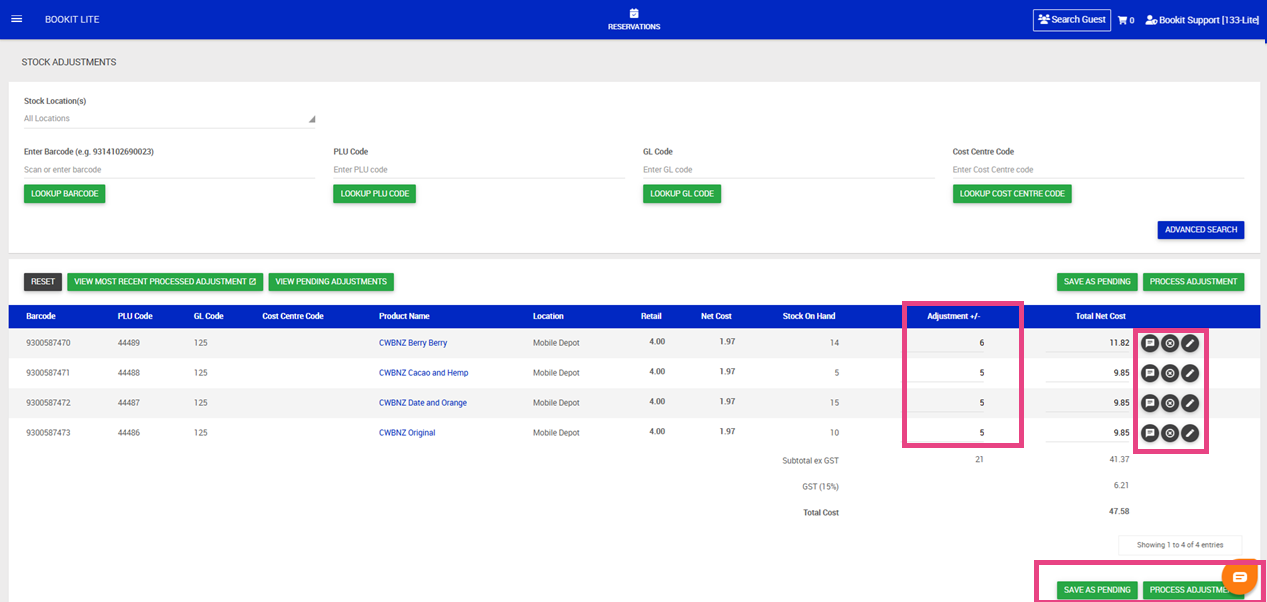
1. Enter the quantity received as per the supplier invoice or physical count under the Adjustment +/- column
2. The Total Net Cost will auto calculate - this may be overridden f required
3. Add notes if required using the speech bubble icon.
4. Remove products from the adjustment using the X icon if required.
5. Click the pencil icon to adjust the Retail and Net Cost for the item.
6. Review the automatically calculated: Total net cost, Subtotal and Total Cost
7. Select Save as Pending if the invoice is being entered before stock has physically arrived or
8. Select Process Adjustment if the stock has arrived and should immediately update stock levels.
9. A pop-up window will appear.Enter:
- Reference number: We recommend entering the invoice number
- Comments (if required)
10. Select Submit.
Processing a Pending Adjustment
Pending adjustments allow invoice information to be entered before stock has physically arrived. Once goods are delivered, the pending adjustment can be reopened and processed.
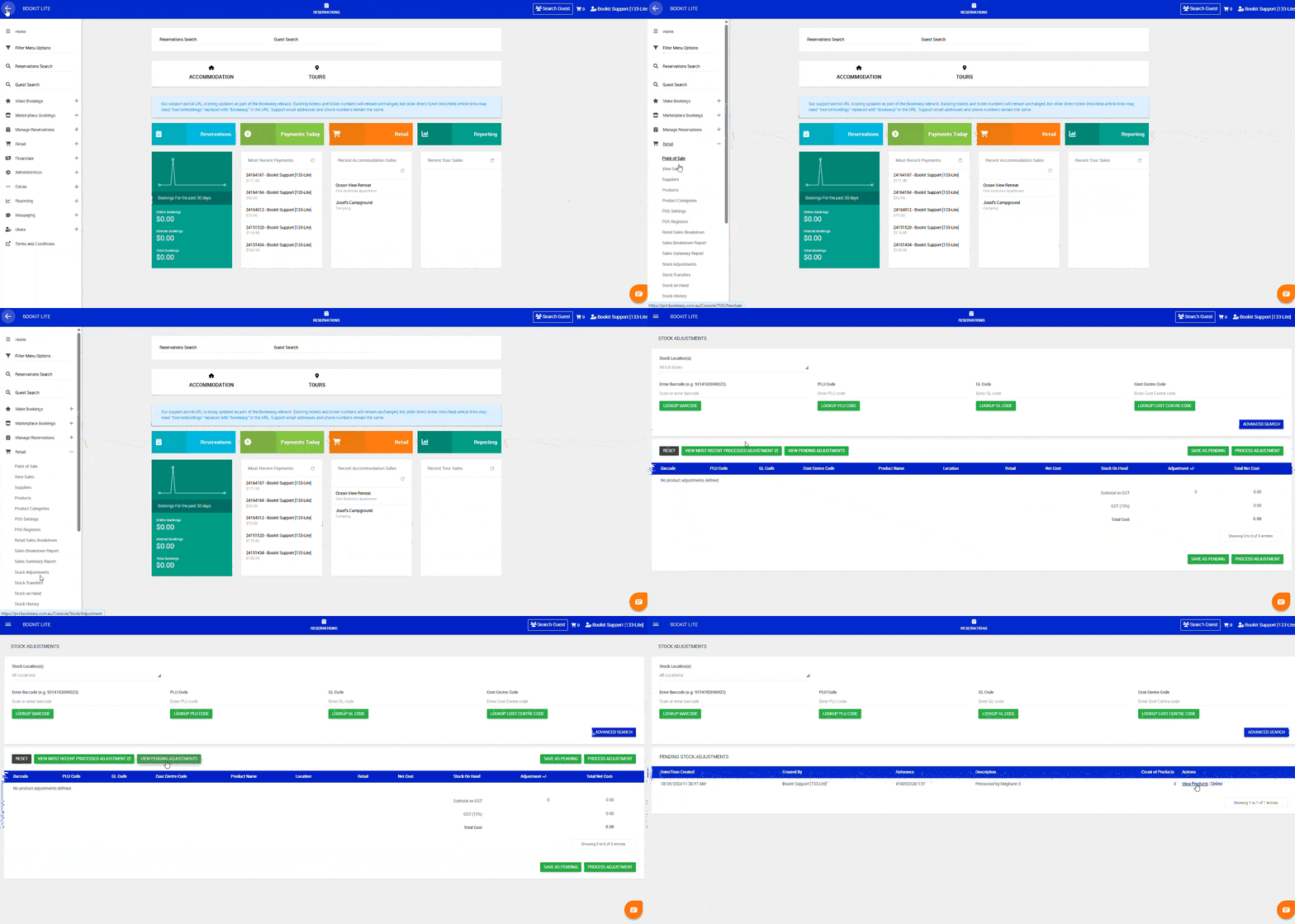
1. Open the left-hand navigation menu.
2. Select Retail.
3. Select Stock Adjustments.
4. Select View Pending Adjustments.
5. Select View Products
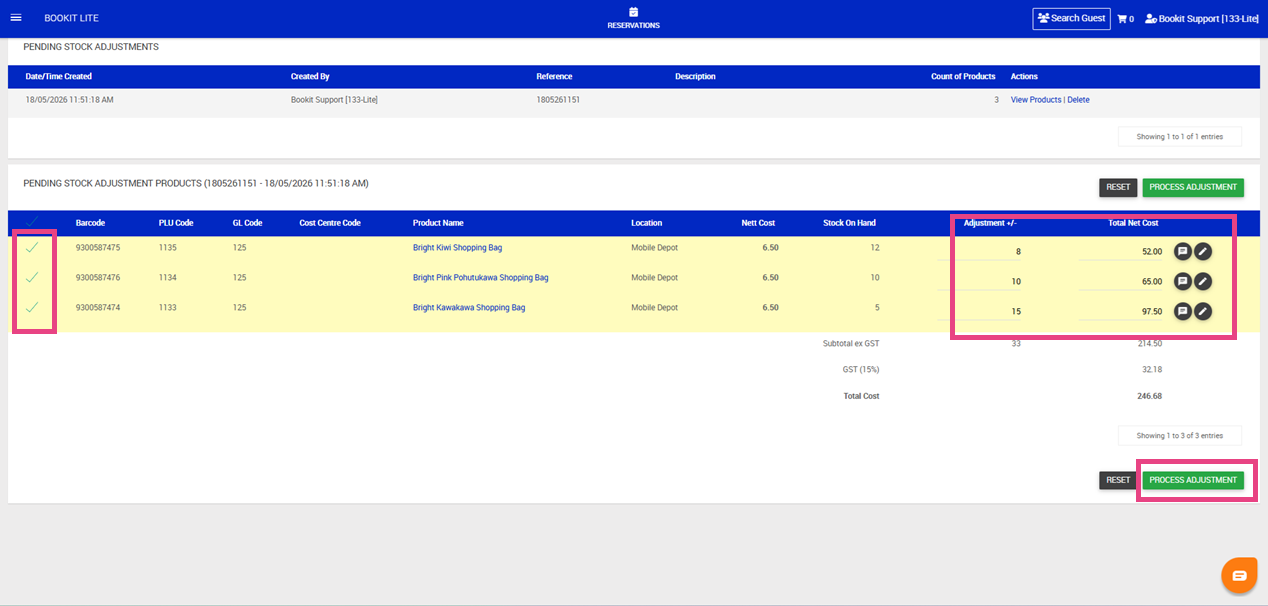
6. Select the products that have been delivered.
7. Update pricing if required.
8. Override quantities or total pricing if required.
9. Select Process Adjustment.
10. A pop-up window will appear.Enter:
- Reference number: We recommend entering the invoice number
- Comments (if required)
11. Select Submit.
Important Note:
Only selected delivered items will process. Remaining undelivered products will remain in the pending adjustment.
Viewing Previous Adjustments
Previous stock adjustments can be viewed from the Stock Adjustments screen.
To view previous adjustments
1. Open the left-hand navigation menu.
2. Select Retail.
3. Select Stock Adjustments.
4. Select View Most Recent Adjustments.