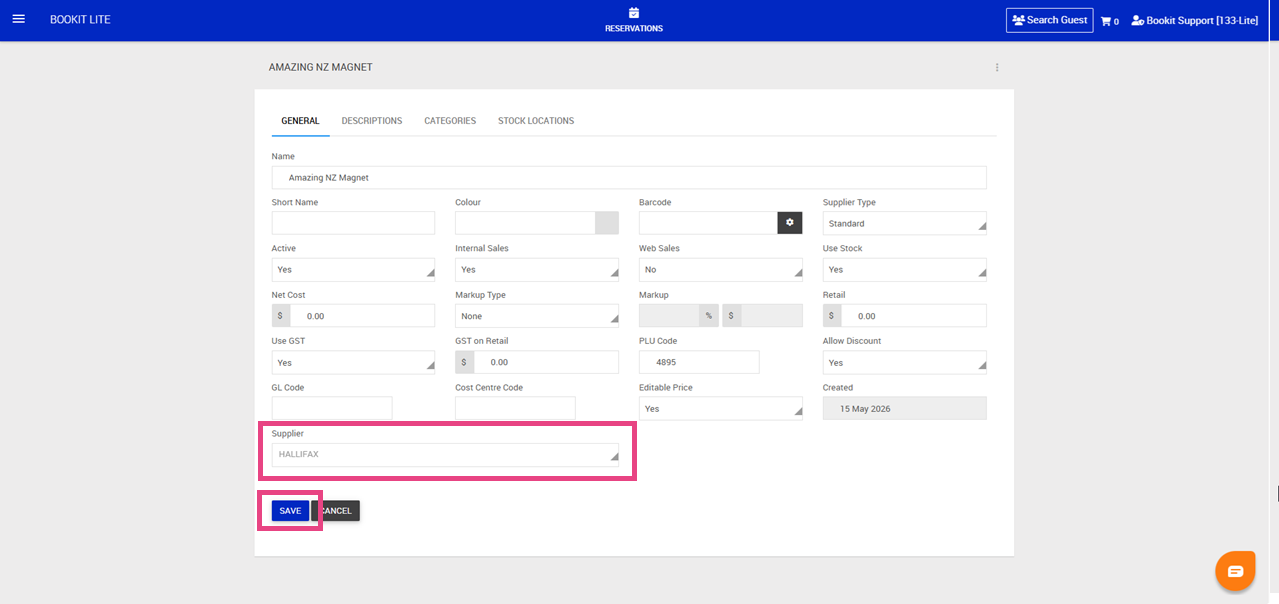
This article explains how to create, edit, and manage suppliers within Bookit Lite POS. Suppliers can be linked to retail products to assist with stock management and product ordering.
If you have a large number of products to set up, please contact support@bookit.co.nz to discuss the possibility of importing your product list into your Bookit Lite console.
Accessing Suppliers
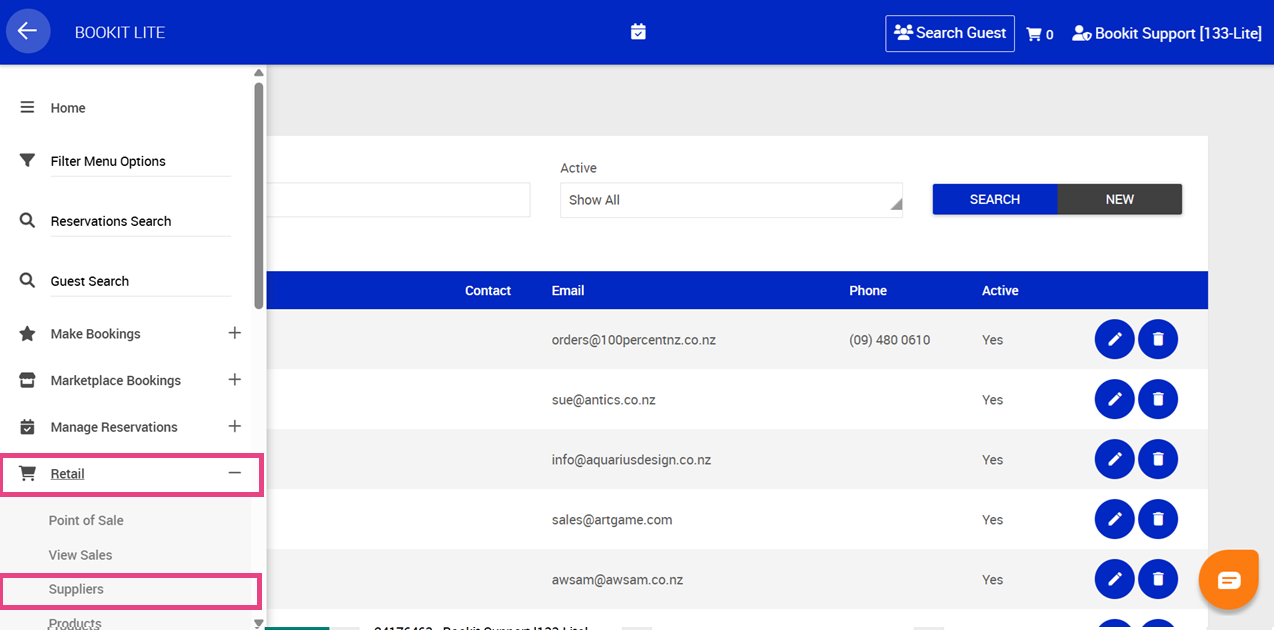
1. Open the left-hand navigation menu.
2. Select Retail.
3. Select Suppliers.
The Suppliers screen will display all existing suppliers
Creating/ Editing a Supplier
To edit/ create a supplier
1. From the Suppliers screen, click the pencil to edit or select New to create a new supplier
2. Enter the supplier details.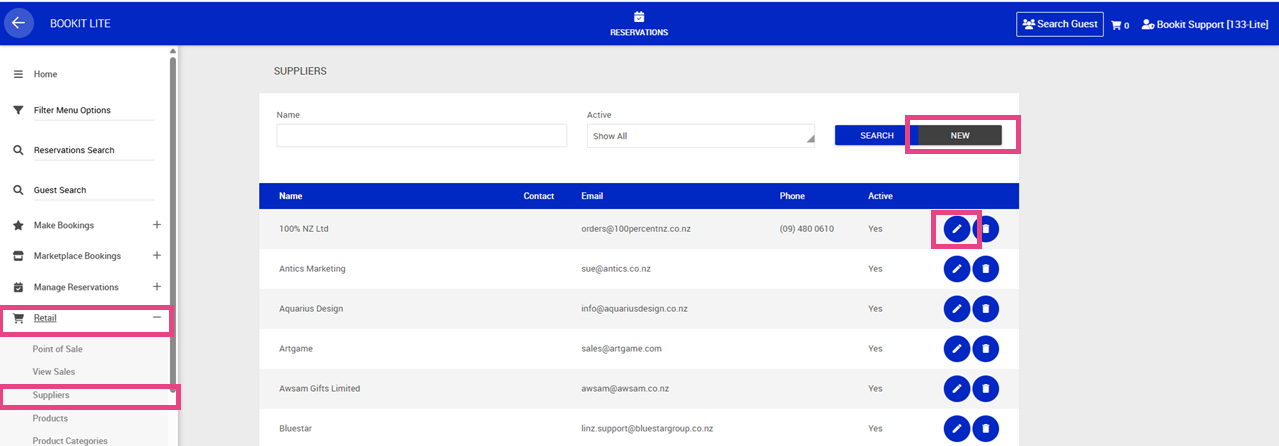
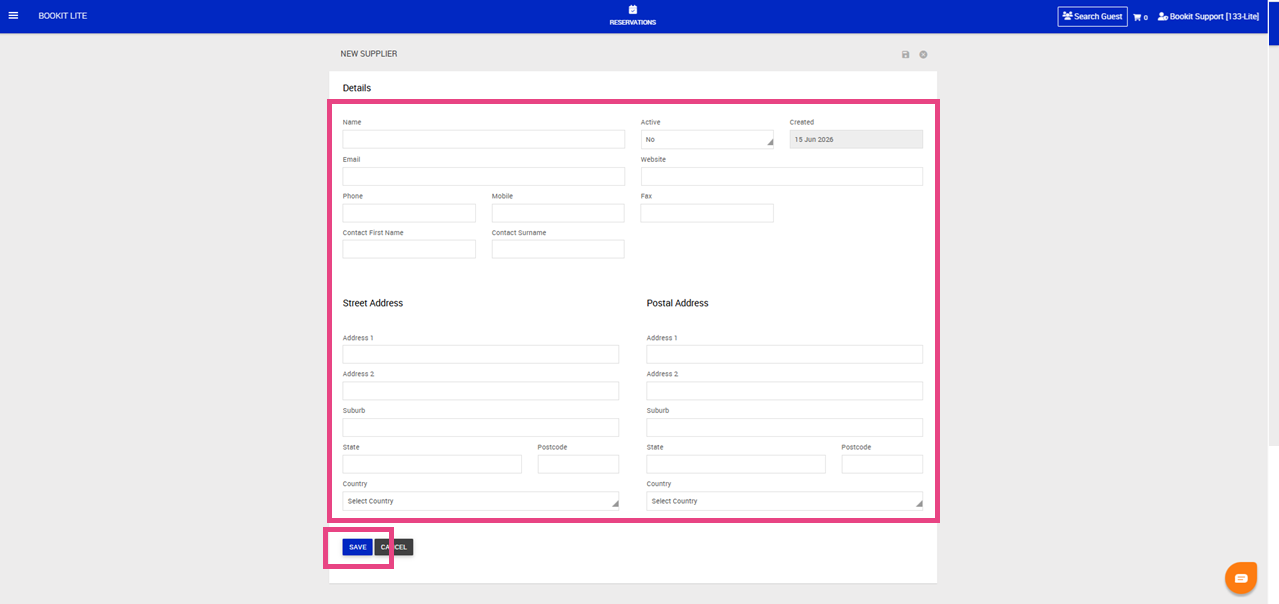
3. Complete the following:
- Name
- Active: Select Yes for an active supplier or change to No to archive an old supplier
- Website
- Phone, Mobile, Fax
- Contact Name
- Street Address
- Postal Address
4. Click Save
Linking Suppliers to Products
Suppliers can be linked to retail products to support stock management.
Important Note: Only one supplier can be assigned as the primary supplier for an individual product.
1. Open the left-hand navigation menu.
2. Select Retail.
3. Select Products.
4. Click the pencil to edit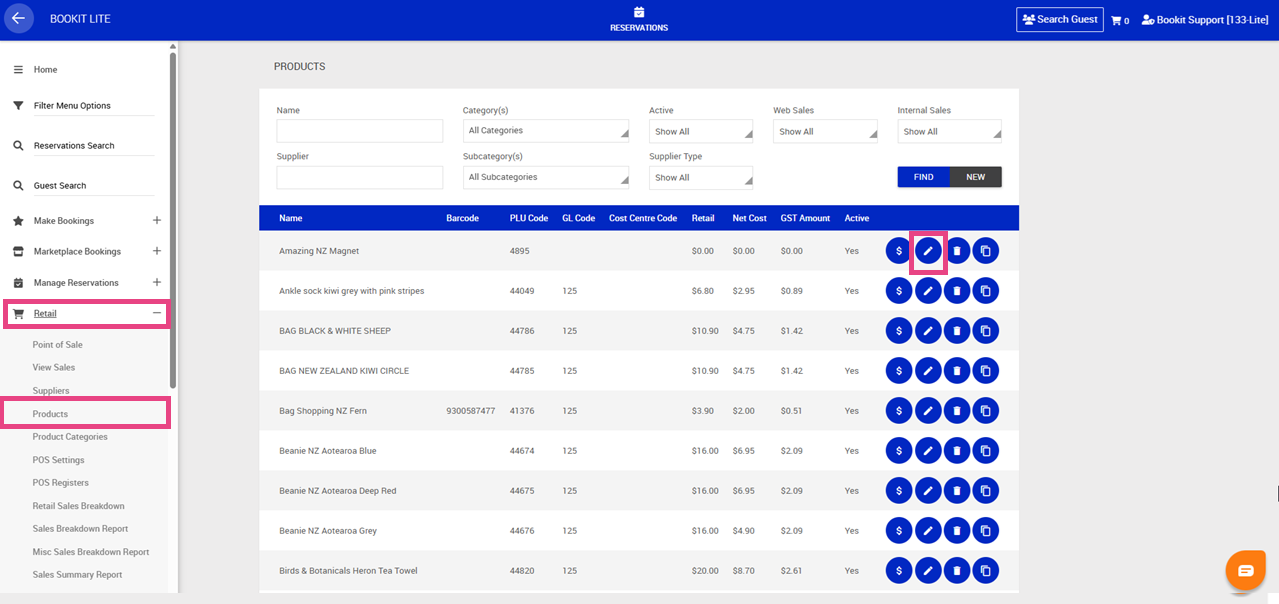
5. Scroll to Supplier at the button of the screen
6. Select Supplier from the drop down
7. Click Save