This article explains the configuration options available within POS Settings in Bookit Lite.
Accessing POS Settings
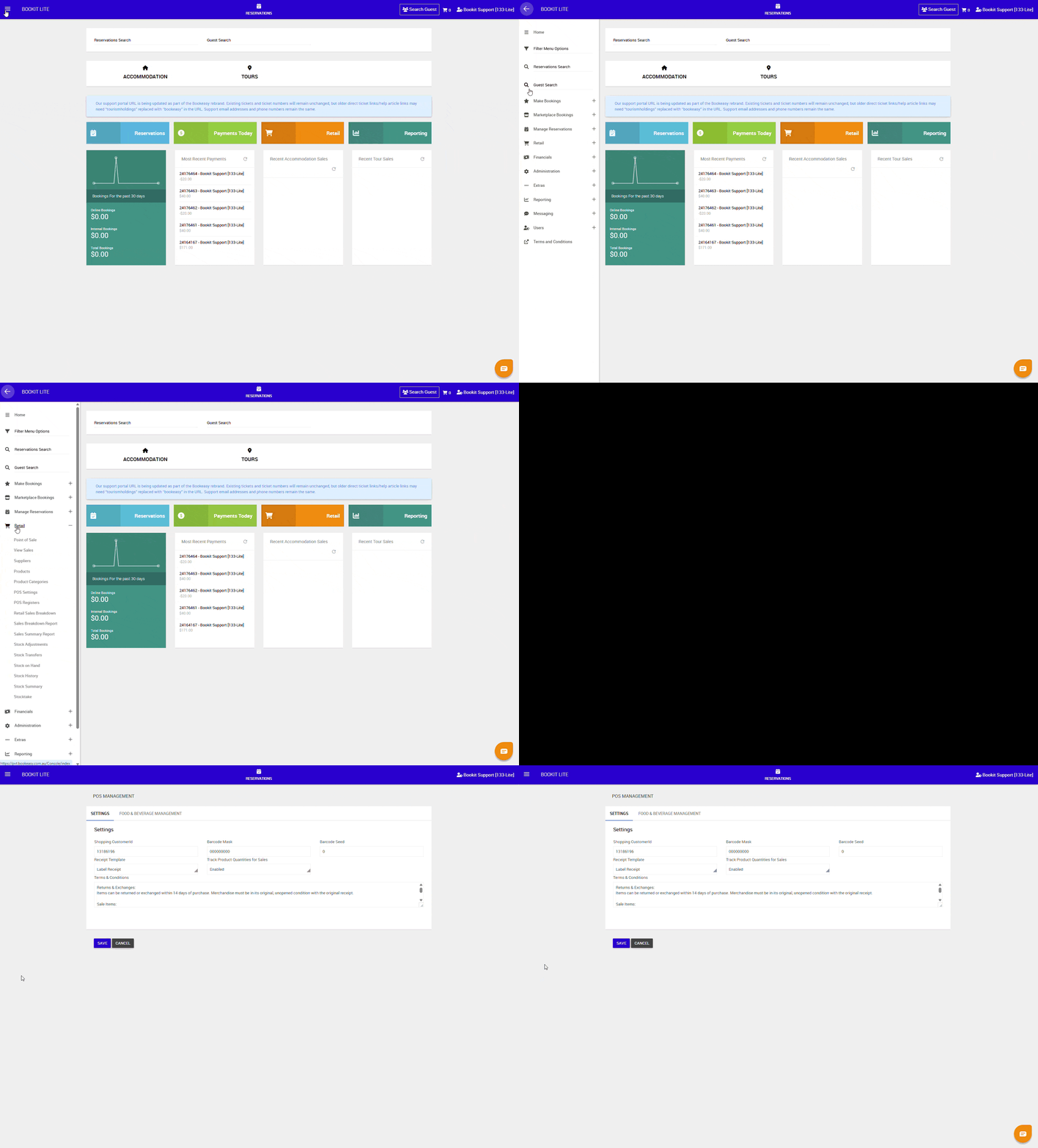
POS settings are managed from the administration menu.
To access POS settings
1. Open the left-hand navigation menu.
2. Select Retail > POS Settings.
The POS Settings screen will display available configuration options.
- Customer ID: Used for barcode generation.
Important: Do not adjust this value. - Barcode Mask: Generic length of auto-generated barcodes
- Barcode Seed: Starting/current number for auto-generated barcodes
- Receipt Template: Select the receipt printer type used by your POS setup.
- A4 – standard printer
- Label Printer – thermal receipt printer
- Track Product Quantities for Sales: When enabled, all POS sales will adjust stock levels accordingly.
- Terms & Conditions: Enter the retail Terms and Conditions to print at the bottom of POS receipts.