This article explains how to locate and manage existing sales within Bookit Lite POS, including viewing transaction details, updating guest information, managing correspondence, and viewing payment history.
Locating an Existing Sale
Existing sales can be accessed from POS regardless of booking location or register.
To locate an existing sale
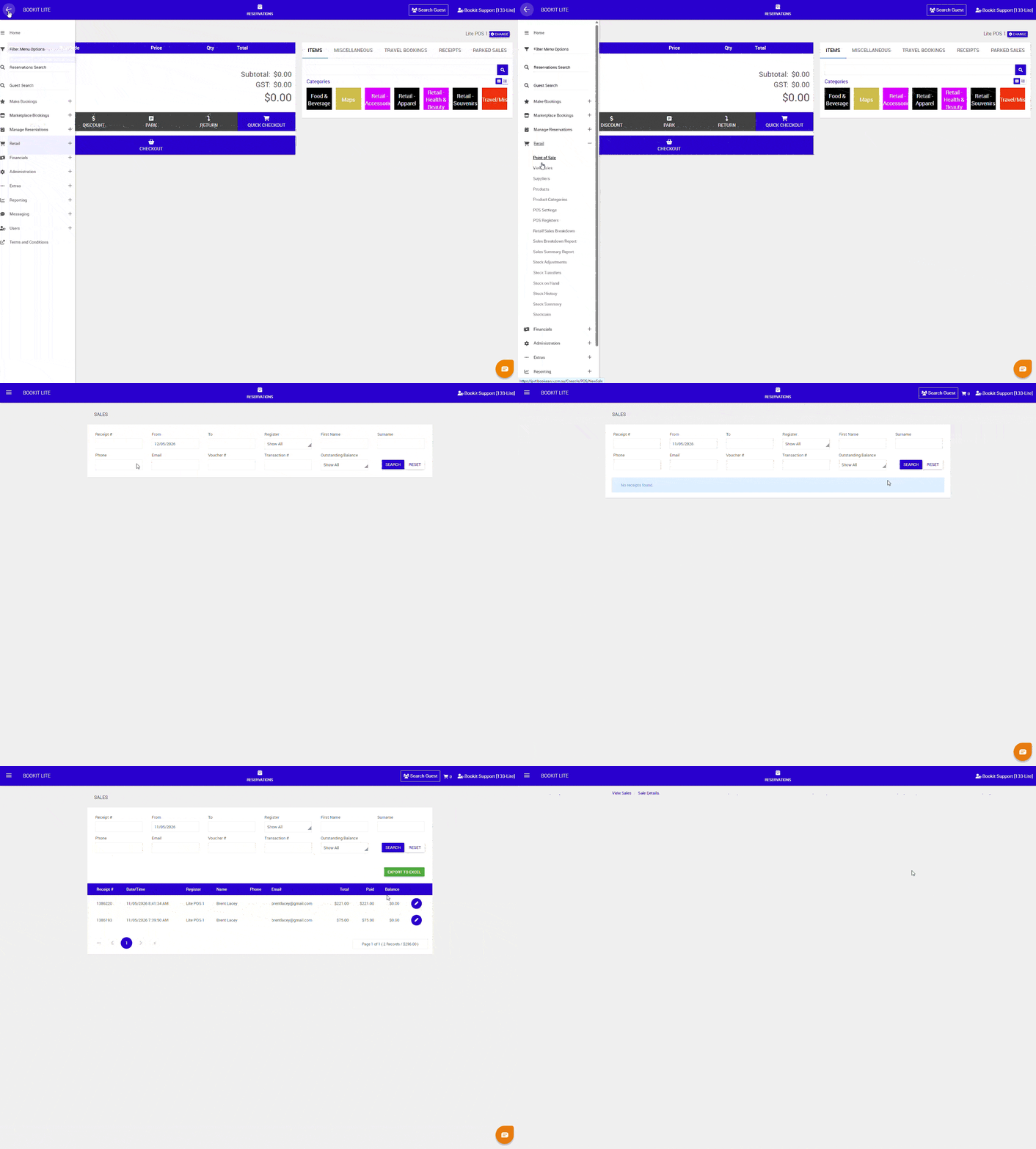
1. Click the three lines in the top left-hand corner of the screen to open the console menu.
Note: The options available depend on your access permissions.
2. Select Retail.
3. Select View Sales.
4. Apply filters to search for the sale. Available filters include:
- Receipt number
- From and To dates
- Register
- Guest details
- Transaction number
5. Select the search icon.
6. A list of matching sales will display.
7. Select the pencil icon beside the required sale to open and manage the transaction.
Updating Guest Details
Guest contact details can be updated after a sale has been completed.
To update guest details
1. Navigate to the transaction using the above steps
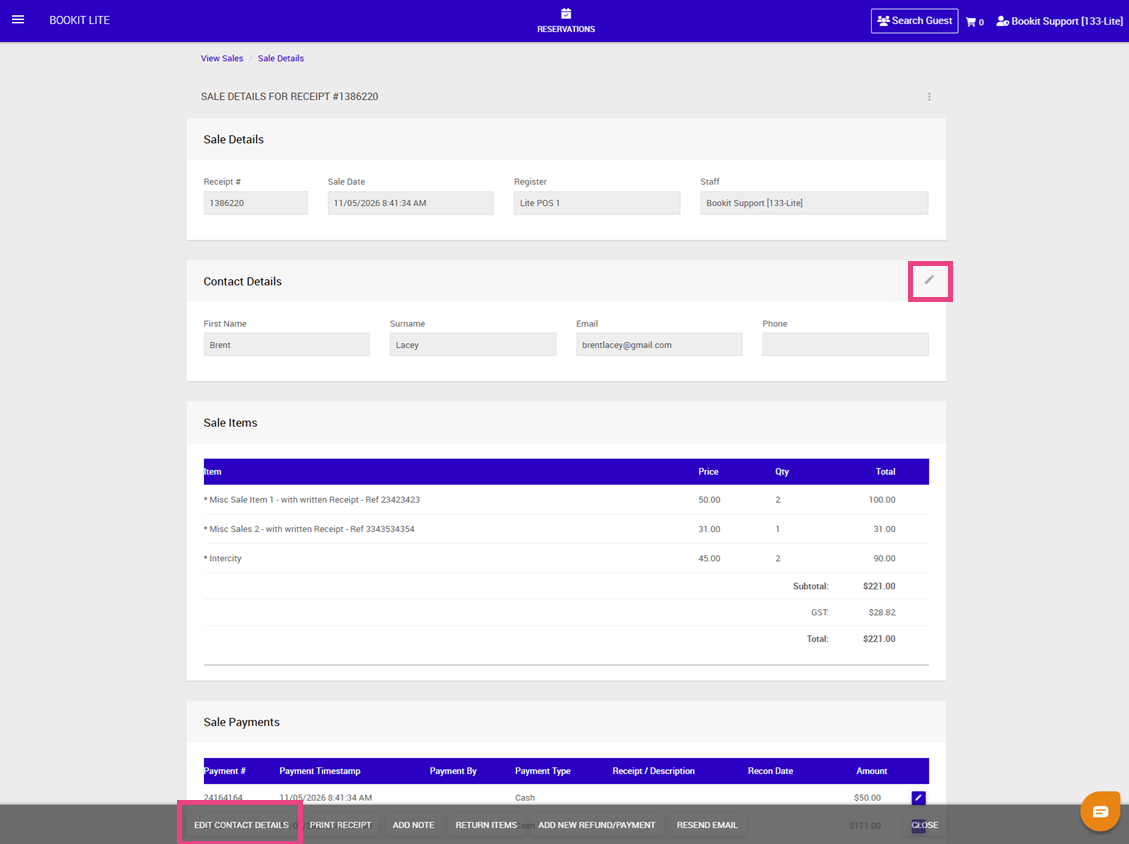
2. Locate the Contact Details section.
3. Select the pencil icon to Edit Guest Details. or click Edit Contact Details at the bottom of the screen
4. Update the required information.
5. Click the Save icon in the Contact Details pod to save the changes.
6. Click Save at the bottom of the page.
Updating Receipt Notes
Sale notes can be updated after a sale has been completed.
To update notes on a sale
1. Navigate to the transaction using the above steps on Locating a Sale
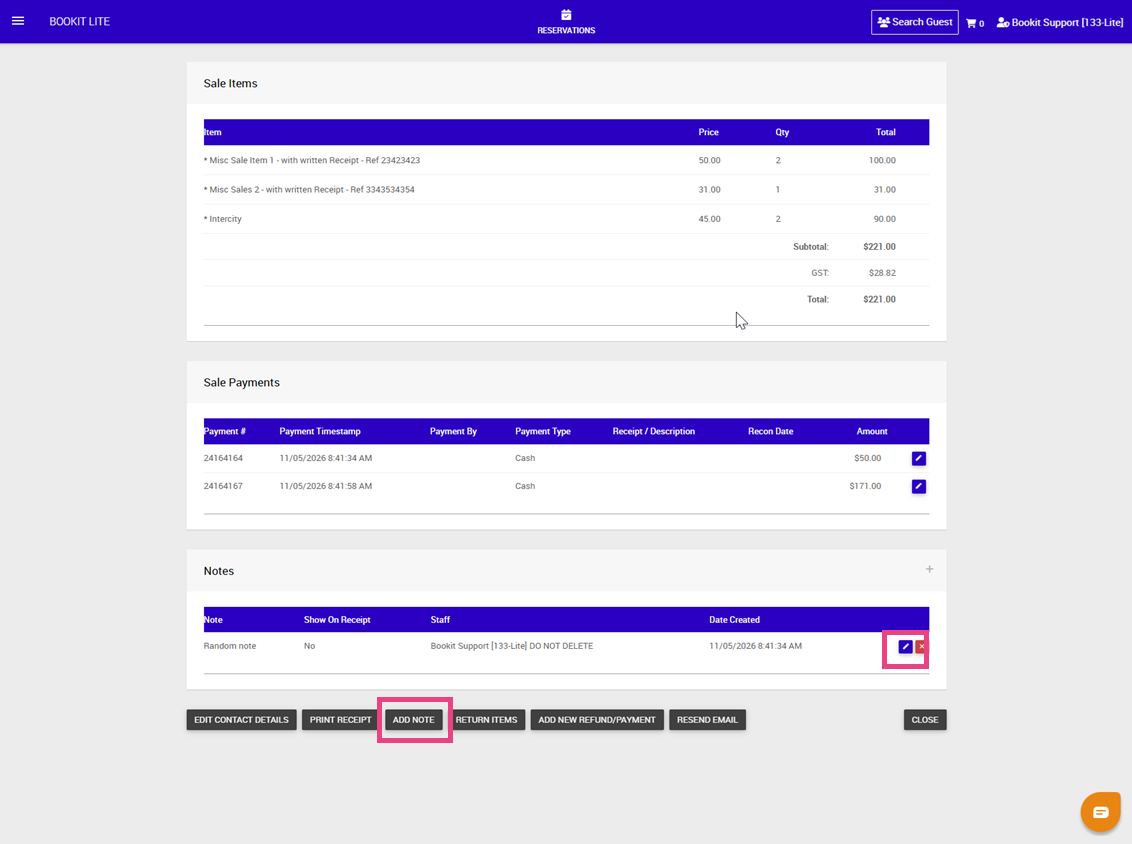
2. Locate the Notes section.
3. Select the pencil icon to edit. or click Add Note at the bottom of the screen
4. Update the required information.
5. Click the Save to save the changes.
6. Click Save at the bottom of the page.