This article explains how to add guest contact details to a POS transaction and email receipts or tax invoices directly from Bookit Lite.
Adding Guest Details to a Sale
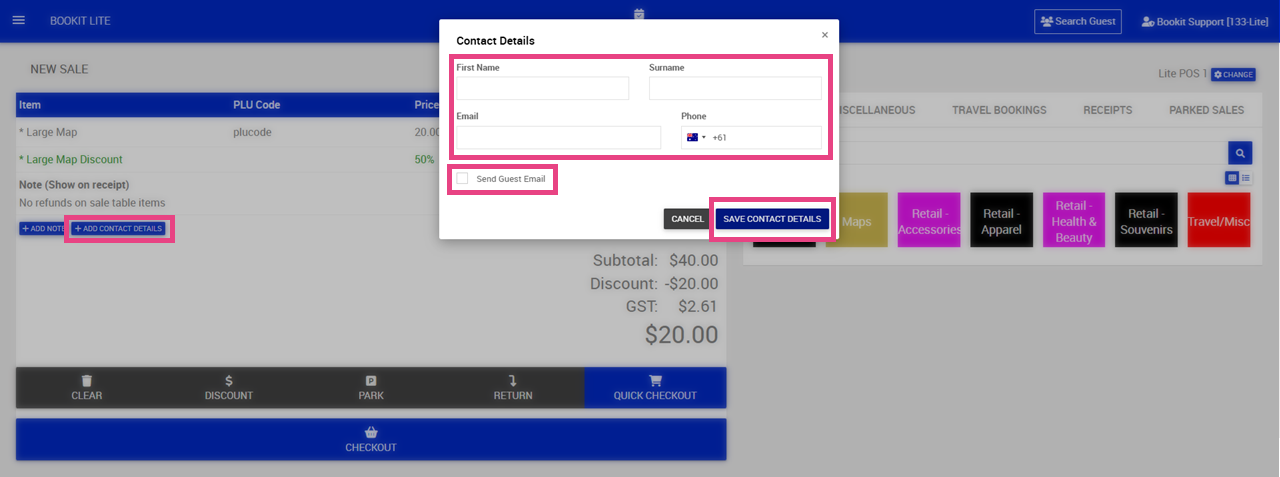
Guest contact details can be attached to a POS transaction before checkout.
To add guest details
1. Click +Add Contact Details on the sales screen.
2. Enter the guest contact information: First Name, Last Name, Email and Phone (If applicable)
Note: Enter the guest email address if a receipt or tax invoice is required.
3. To send a copy of the receipt once the transaction is completed, click Send Guest Email
4. Click Save Contact Details
5. Complete the transaction and payment.
6. If selected in step 3, the receipt or tax invoice will automatically be emailed to the guest.
Editing or Removing Guest Details
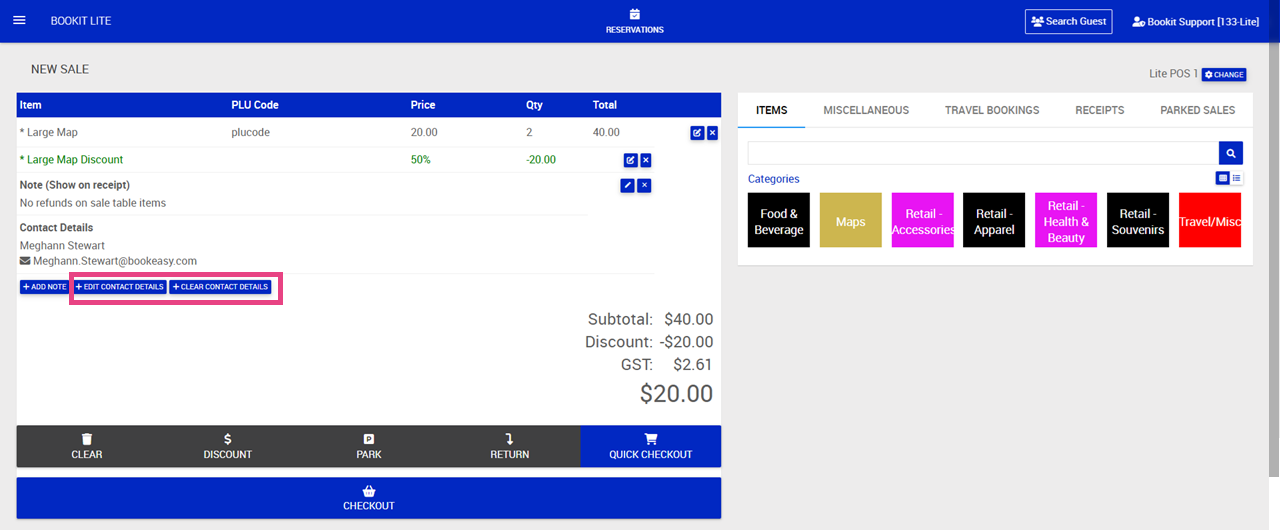
Guest details can be updated or cleared before the transaction is finalised.
To edit or remove guest details
1. In your sale screen, click +Edit Contact Details to update information
2. Update contact information as required > Click Save Contact Details
3. Alternatively to remove guest details, click +Clear Contact Details