This article explains how to apply discounts to individual products or an entire sale within Bookit Lite POS. Discounts can be applied as either a percentage or dollar amount, depending on the product and user permissions configured for your isite.
Applying a Discount to an Individual Product
Discounts can be applied directly to a product line within the shopping cart if the product configuration allows discounts.
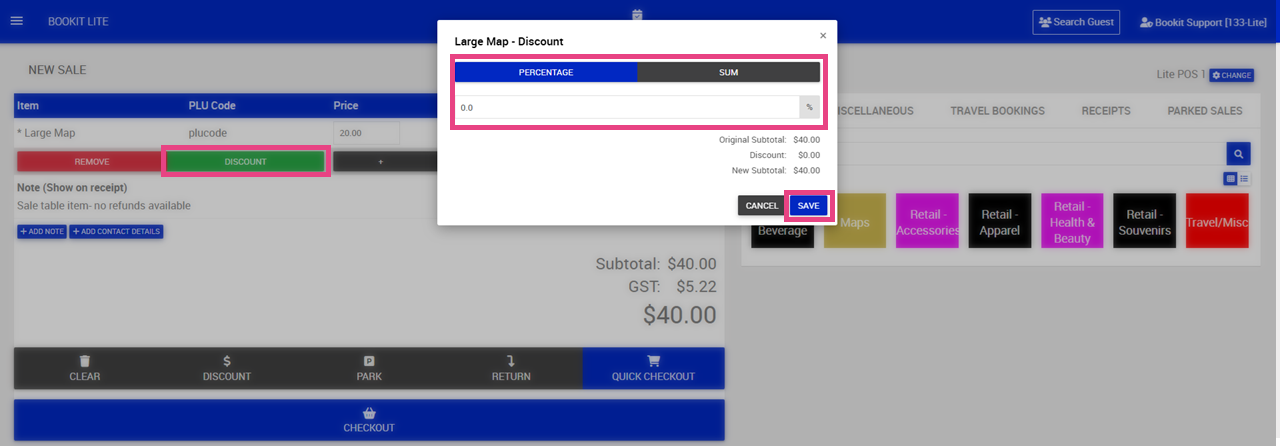
To apply a discount to a product
- 1. Locate the product in the sale
- 2. Click the pencil icon beside the product line to the right hand side (Not pictured)
- 3. Click Discount
- 4. Select the discount type: Percentage or Sum (fixed amount)
- 5. Enter the discount value > Click Save
- 6. The discount will be applied to the selected product line.
Important Note: If the product does not allow discounts, the discount option cannot be selected. Discounts may be restricted by user permissions or product configuration.
Applying a Discount to an Entire Sale
Cart discounts apply across all eligible products within the shopping cart.
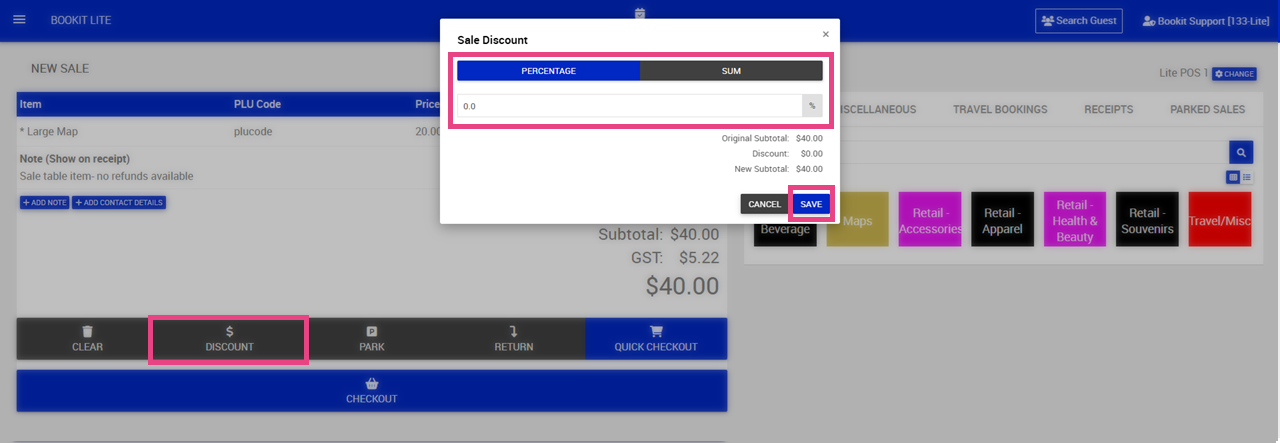
To apply a cart discount
- 1. Add all your products to your sale
- 2. In the checkout line, select Discount.
- 3. Select the discount type: Percentage or Sum (fixed amount)
- 4. Enter the discount value > Click Save
- 5. The discount will automatically calculate across eligible products in the cart.
Important Note: Discounts only apply to products configured to allow discounts. If some products are excluded from discounts, the calculation will only apply to eligible items.
Viewing Applied Discounts
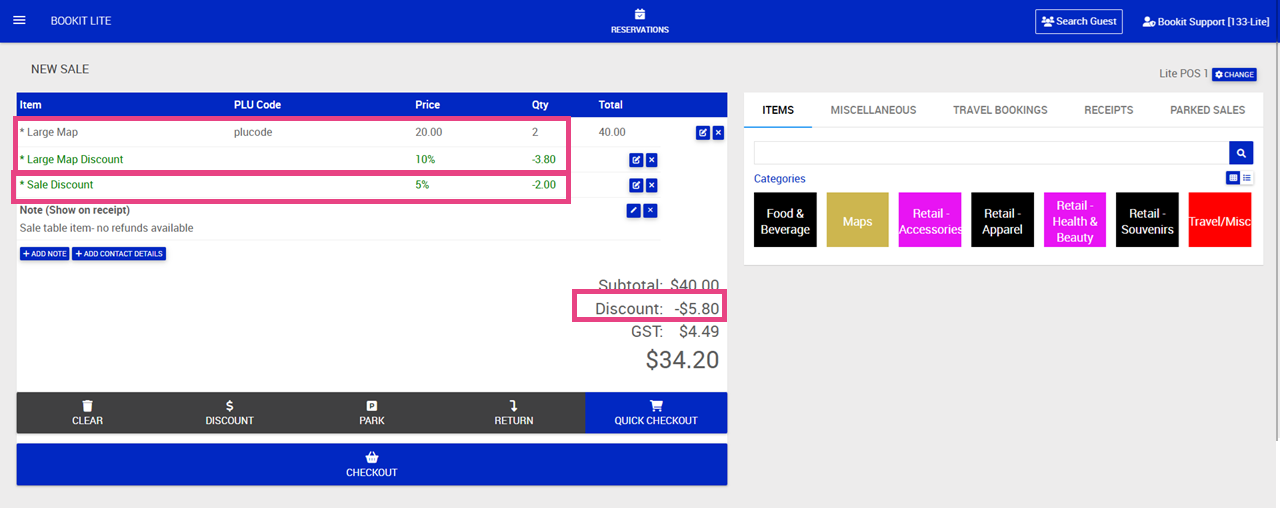
Once applied, discounts will display within the shopping cart and subtotals area.
The POS screen will show:
- Discounts applied to individual products
- Discounts applied to the full shopping cart
- Total discount amount in the transaction subtotals